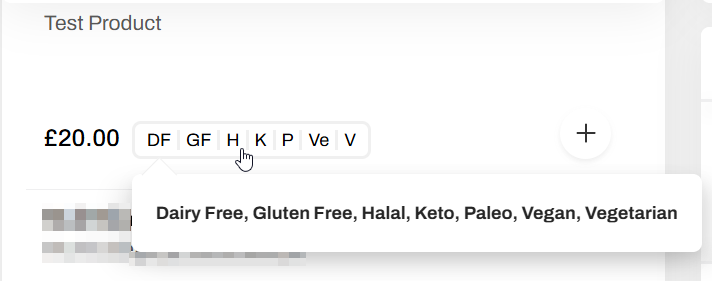
What are Dietary Requirement Tags?
Dietary requirement tags let you clearly show which products meet specific dietary needs, so customers can quickly see what’s suitable for them at checkout.
You can tag products with:
- Vegan
- Vegetarian
- Gluten Free
- Dairy Free
- Halal
- Paleo
- Keto
Once added to a product in Controls, these tags will display on the checkout page as labels on each product, making it easier for customers to see which items match their dietary requirements before placing an order.
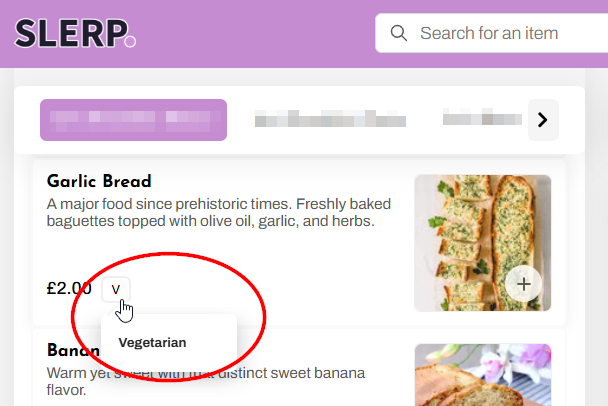
How Dietary Requirement Tags Work
- Tags are set at product level in Controls.
- Each product can have one or more dietary requirement tags, depending on what applies.
- When customers reach checkout, each tagged product shows its dietary tags as visible labels.
- This helps customers:
- Quickly identify suitable items.
- Avoid products that don’t match their diet.
- Order with more confidence without needing to ask extra questions.
Adding Dietary Requirement Tags to a Product
- Log in to your Slerp Controls Dashboard.
- Go to the Products tab.
- Select the product you want to edit and click Edit ✏️.
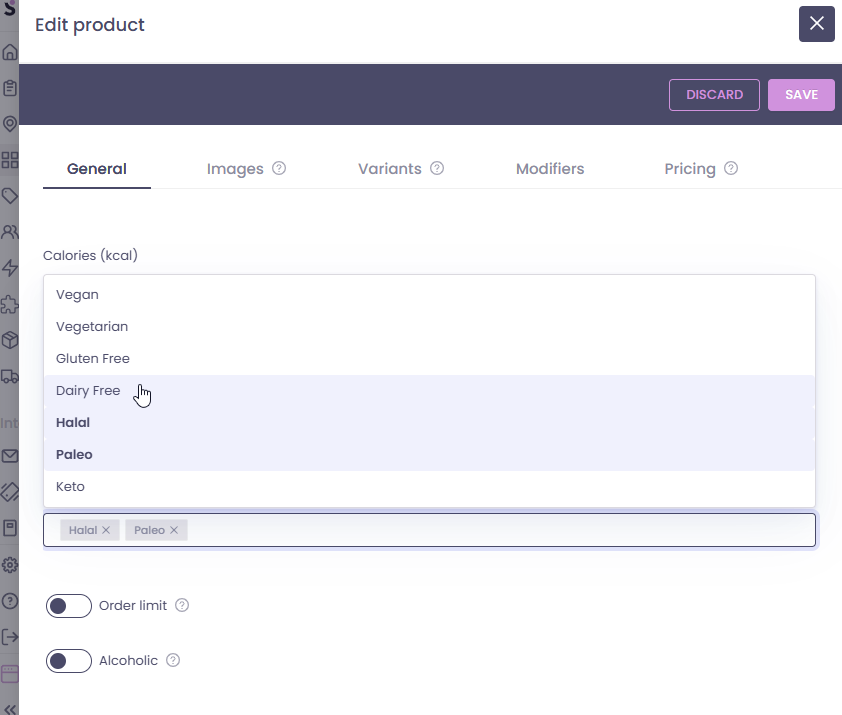
- In the product settings, find the Dietary requirements section.
- Tick or select all tags that apply, for example:
- Vegan
- Gluten Free
- Halal
- Click Save.
Repeat this for each product you want to display dietary tags for.
What Customers See
- At checkout, customers will see dietary tags displayed on each product that has them configured.
- For example, a product might show:
VeganGluten Free
This makes it clear which items they can safely choose based on their dietary needs.