
By adding your IDs and verification tokens here, you can see how customers interact with your Slerp store, measure the impact of your campaigns, and automate review collection.
How do I access this?
Login as Admin to Controls → Settings → Marketing and Analytics tab
Or you can use this Quick Link ⚡Marketing and Analytics
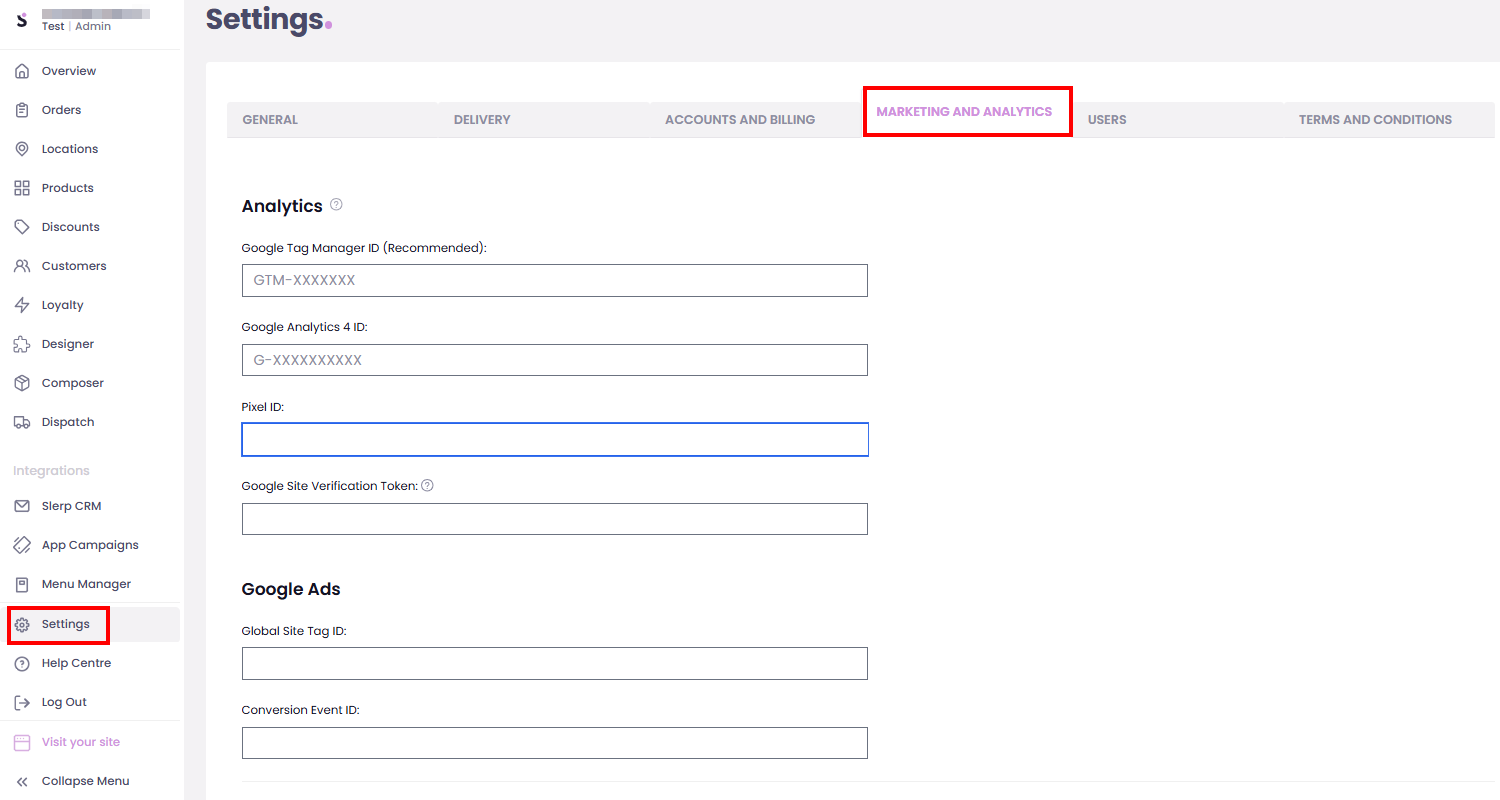
Once configured, you’ll be able to use tools like Google Analytics, Google Ads, Meta (Facebook) Pixel, and Trustpilot to:
- Track traffic and behaviour on your Slerp store
- Optimise your menus, funnels, and offers
- Run and measure paid campaigns
- Build social proof and Google Seller Ratings through reviews
1. Analytics (Google Tag Manager, GA4, Pixel)
Description:
By adding your Google Tag Manager, Google Analytics 4, and Pixel ID, you can track your Slerp store traffic and behaviour in your own analytics dashboards. This lets you understand how customers browse, what they buy, and where they drop off, so you can optimise your experience and marketing.
Fields:
-
Google Tag Manager ID
- Example format:
GTM-XXXXXXX - Used to deploy and manage tags (e.g. GA4, pixels) without changing code.
- Example format:
-
Google Analytics 4 ID
- Example format:
G-XXXXXXXXXX - Used to send event and traffic data to your GA4 property.
- Example format:
-
Pixel ID
- Typically your Meta (Facebook) Pixel ID.
- Used to track conversions and optimise Meta campaigns.
-
Google Site Verification Token
- Used to verify your Slerp domain with Google (e.g. for Search Console).
- Important: Enter only the
contentvalue from the meta tag.- Example: If your meta tag is:
You should enter only:<meta name="google-site-verification" content="uk52z456g9hqwe03pqw14g4klw1rw6" />uk52z456g9hqwe03pqw14g4klw1rw6
- Example: If your meta tag is:
2. Google Ads
This section links your Slerp store to Google Ads so you can track conversions and optimise your advertising.
Fields:
-
Global Site Tag ID
- Used to identify your Google Ads tag on the site.
-
Conversion Event ID
- Used to track specific conversion events (e.g. completed orders) from your Slerp store back into Google Ads.
3. Facebook Business Settings (Domain Verification)
If you run Meta (Facebook/Instagram) ads, domain verification helps you prove ownership of your domain and configure events correctly.
Field:
- Domain Verification
- Important: Enter only the
contentvalue from the meta tag provided by Facebook. - Example: If your meta tag is:
You should enter only:<meta name="facebook-domain verification" content="uk52z456g9hqwe03pqw14g4klw1rw6" />uk52z456g9hqwe03pqw14g4klw1rw6
- Important: Enter only the
4. Trustpilot Settings (Automated Feedback Service)
Trustpilot Automated Feedback Service (AFS)
Trustpilot’s Automatic Feedback Service (AFS) lets you automatically invite customers to leave reviews after they place an order. This helps you:
- Collect more verified reviews with less manual effort
- Build Google Seller Ratings faster
- Stand out more clearly on Google Search and other channels
Once configured, AFS will automatically send review invitations based on your Trustpilot settings.
If you’re unsure where to find any of these IDs or tokens, your marketing agency or digital team should be able to help, or you can refer to the help guides for each external platform (Google, Meta, Trustpilot).