
What is a customer in Composer?
A customer in Composer is the record you use to group account-based ordering and pricing.
This is especially useful for:
- wholesale customers
- retail customers with separate pricing
- online customers using standard pricing
- customers who need invoicing rather than checkout payment
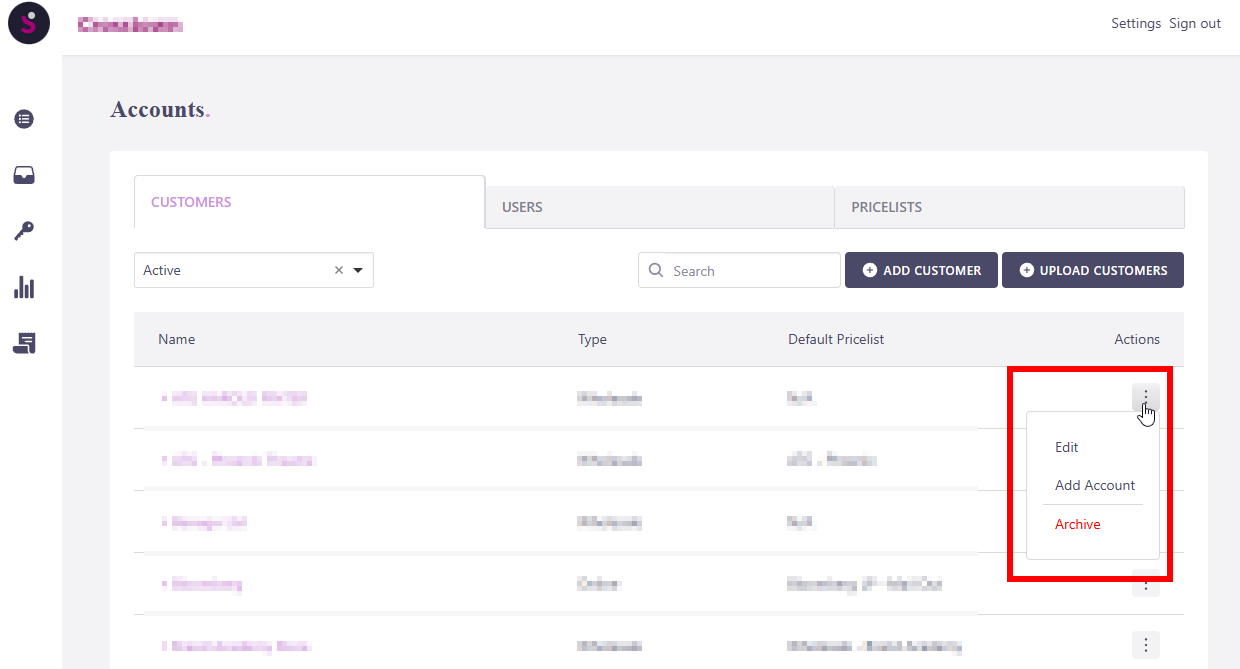
Once a customer has been created, you can manage it from the Accounts area and use the Actions menu to edit the customer, add an account, or archive it.
Before you start
Before adding a customer, make sure:
- you know which customer type they should use
- the correct pricelist already exists in Composer
- you know whether this customer will need a separate account for invoicing or account-based ordering
If the customer needs different pricing from your standard setup, check that the correct pricelist has been created first.
Step 1 – Open the Accounts
- Log in to your Slerp Controls dashboard.
- Open Composer.
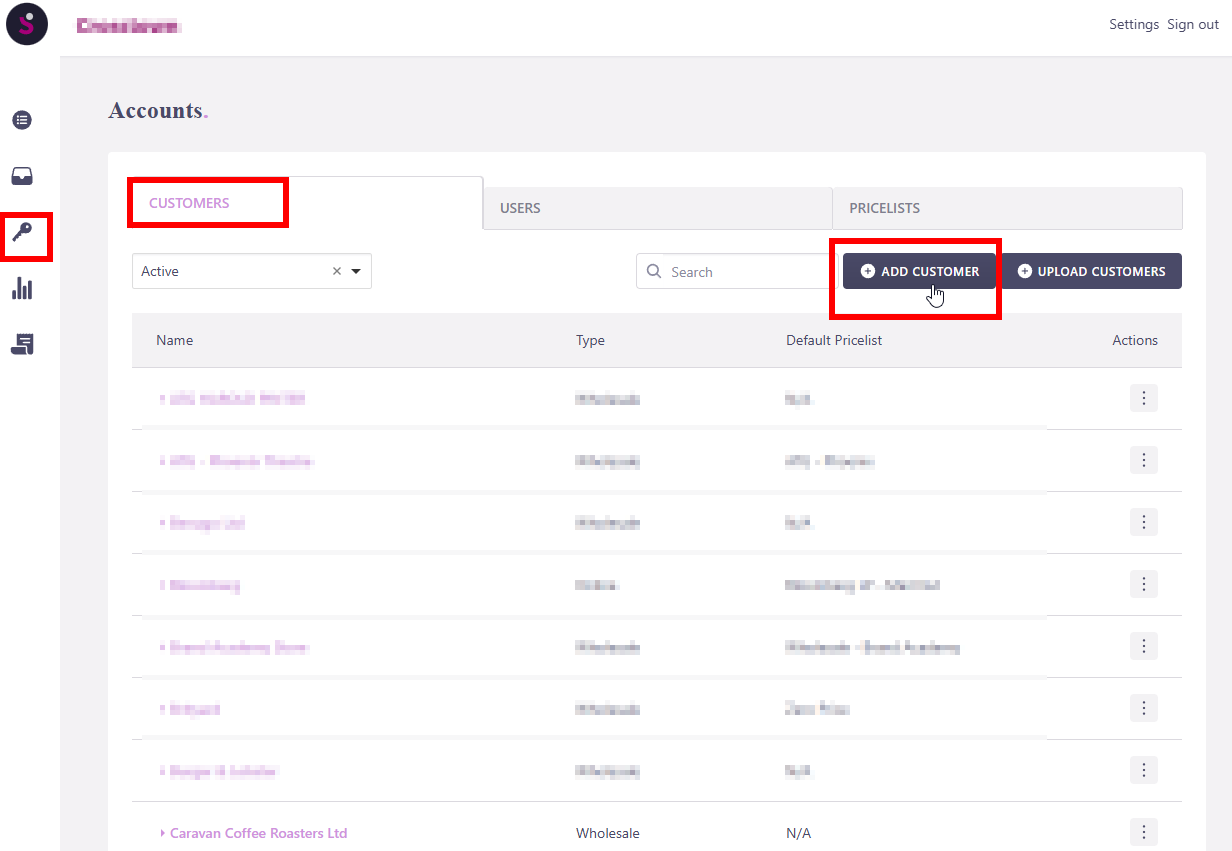
- In the left-hand menu, click Accounts.
- Stay on the Customers tab.
From here, you can view your existing customers, search for customers, or create a new one.
Step 2 – Add a new customer
- Click Add Customer.
- In the New Customer window, complete the customer details:
- Name
- Type
- Default Pricelist
- Click Submit.
Your new customer will then appear in the customer list.
Step 3 – Choose the correct customer type
When creating the customer, select the type that best matches how they order:
- Online – for standard online ordering setups
- Retail – for retail-style customer setups
- Wholesale – for trade or wholesale customers who may have separate pricing or invoicing requirements
Make sure the type matches how you intend to manage pricing and ordering for that customer.
Step 4 – Assign the default pricelist
Choose the correct Default Pricelist for the customer.
Examples shown in Composer may include:
- Default Pricelist
- Wholesale Customers
This controls which pricing the customer uses by default.
For example:
- a wholesale customer should usually be linked to a wholesale pricelist
- a standard online customer will usually use the default pricelist
Step 5 – Manage the customer after creation
Once the customer has been created, find them in the Customers list.
Use the Actions menu to:
- Edit the customer
- Add Account
- Archive the customer
This lets you update the customer later if their setup changes.
Editing an existing customer
To update a customer:
- Go to Accounts.
- Stay on the Customers tab.
- Find the customer in the list.
- Open the Actions menu.
- Click Edit.
- Update the customer’s:
- Name
- Type
- Default Pricelist
- Click Submit.
🏆 Best practice
Use clear customer names and make sure the assigned pricelist matches how that customer should be billed.
For example:
- Wholesale customers should normally use a wholesale pricelist
- Standard online customers should normally use the default online pricing setup
If the customer will be invoiced later, make sure the correct account and invoice settings are also configured before orders are processed.
Troubleshooting
I cannot see the right pricelist
Check that the pricelist has already been created in Composer before adding the customer.
I created the customer, but they still cannot be invoiced correctly
Check whether an account also needs to be added to that customer, and confirm the invoice settings are completed.
I selected the wrong customer type
Open the customer from the Actions menu, click Edit, update the type, and save the changes.