
Overview
Slerp can act as the loyalty engine for Lightspeed, allowing you to run a single loyalty program that works both online (Slerp) and in-store (Lightspeed). To set this up you will need to:
- Request that Real Time Notifications (RTNs) are enabled by Lightspeed.
- Connect Slerp to Lightspeed and map your Slerp stores to Lightspeed locations.
- In Lightspeed, create discounts that correspond to each reward in your Slerp loyalty program.
- In Slerp, map those Lightspeed discounts to the relevant rewards.
- In Lightspeed, configure the Slerp web extension.
Connecting to Lightspeed
Connecting Slerp to Lightspeed is covered in this guide. Before proceeding, please note the following:
- You must map your Slerp stores to Lightspeed locations. This is required for the loyalty integration to work.
- You do not need to map fulfilment types or pass orders through the integration.
- Syncing menus is not required, but is recommended if you want to offer product-specific rewards or points.
Requesting Real time notifications
To enable Real Time Notifications you will need to contact light speed. This can be done as described below.
Send and email to:
-
k-series.support@lightspeedhq.com.
-
CC your account owner for approval.
Using the following email template:
Subject: Enabling Real Time Notifications
Hi K-Series Support,
Please activate the Online Ordering module for the following
Lightspeed K-Series merchant:
- Name of Integration: Slerp x K-Series
- Business Name: [Your Lightspeed Business Name]
- Business ID: [Your Lightspeed Business ID]
- Business Location ID: [Your Location ID]
- Description of Request: Enabling realtime notifications for notification types 'OPEN', 'UPDATE' and 'CLOSE'
Thank you,
[Your Name]
Mapping Lightspeed discounts to Slerp rewards
To link rewards in Slerp to discounts in Lightspeed, both need to share a common identifier. Follow the steps below to set this up.
Step 1. Set up a loyalty scheme in Slerp
If you have not already done so, set up a Slerp loyalty card by following the steps here.
Step 2. Create or update discounts in Lightspeed
In Lightspeed, navigate to Payment > Discounts and create a discount for each reward in your Slerp loyalty program. Make sure the value of each discount matches the value of the corresponding reward in Slerp. For example, if the reward is £5 off, the discount in Lightspeed must also be set to £5.
For example:
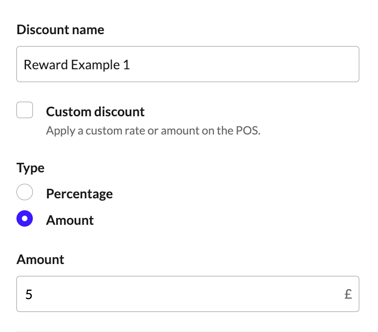
For each discount, navigate to Advanced Settings and set the Discount Code field. This is the shared identifier that Slerp will use to match the discount to the correct reward.
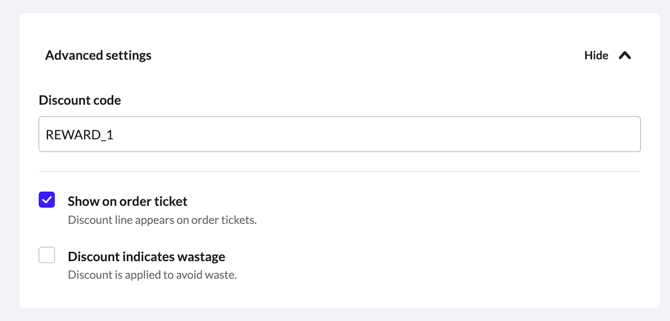
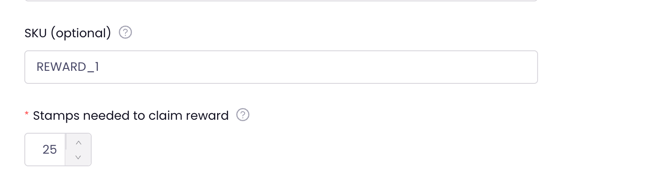
Step 3. Map the discounts to rewards in Slerp
Once your discounts are configured in Lightspeed, go to Slerp and navigate to Loyalty > Your Cards > Loyalty Card > Reward Details. Update each reward to reference the corresponding Lightspeed discount code.
Step 4. Repeat for all rewards
Repeat Steps 2 and 3 for each reward in your loyalty scheme.
Mapping Lightspeed discounts to Slerp rewards
Slerp will provide you with a URL, username, and password for the web extension. The same credentials are used across all of your locations.
Step 1. Register the web extension
In Lightspeed, navigate to Operations > Web Extensions > Create Web Extension and fill in the following fields:
| Field | Value |
|---|---|
| Name | Slerp Loyalty |
| URL | Provided by Slerp |
| Authentication | Username and password provided by Slerp |
| Allowed Loading Domain | https://pos.api.slerp.com |
Step 2. Add the web extension to the POS screen
Once the web extension has been registered, you can add it to your POS screen so that staff can access it during service. In Lightspeed, navigate to Menu > Menu Management and select the menu you use on your POS.
You can add the extension to any screen or sub-screen. Once you have decided where you would like it to appear, select Add Button > Web Extension and choose the Slerp Loyalty web extension.
Step 3. Test the integration
Once the web extension is in place, open it on the POS and verify the following:
- You can look up a Slerp customer using their email address or customer QR code.
- Points are awarded correctly.
- Rewards can be redeemed successfully.