This guide shows you how to set up common discount types in Slerp:
- Create a 100% basket discount (full order value)
- Create a Buy One, Get One (BOGO) discount
- Create a fixed amount discount
- Create % off on specific items
- Create free delivery / delivery fee discounts
- Editing, Deactivating, And Managing Existing Discounts
Each example uses the same discount form. The steps below focus only on the options that matter for each use case.
Before you start: open the discount form
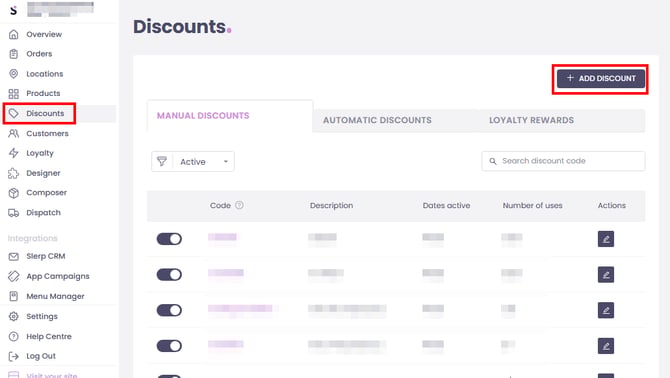
- Log into your Slerp Controls dashboard.
- In the side navigation menu, select Discounts.
- Click + ADD DISCOUNT (usually top-right).
Create a 100% basket discount (for full order value)
This is especially useful for:
- Corporate catering or regular B2B customers who will be invoiced later (e.g. using Composer).
- Internal/testing scenarios where you want to simulate orders at £0.
Select Basket as the discount scope
- In Controls → Discounts → + ADD DISCOUNT, choose the BASKET discount type.
- This ensures the discount can be applied to the overall basket value, not just specific items.
Configure how the code is applied
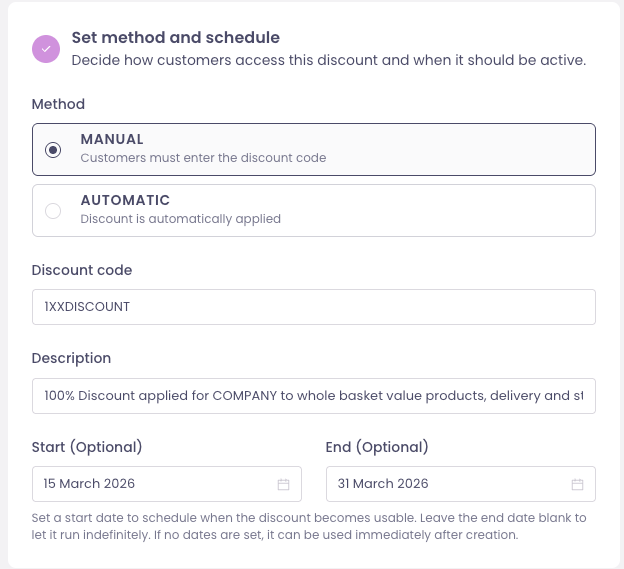
Under Method:
- MANUAL (recommended for account-specific usage):
- The customer must enter the discount code at checkout.
- Ideal when providing a unique code to a particular company or group.
- AUTOMATIC:
- The discount is automatically applied when the customer meets the configured criteria.
- Use carefully if you only want specific customers to benefit.
Define the 100% discount details
Fill in the following:
-
Discount code
- At least 4 alphanumeric characters.
- Examples:
COMPANY100,SLERPLTD2026,CLIENTXFREE.
-
Description
- Visible to customers at checkout.
- Example:
“100% Discount applied for COMPANY – basket value, delivery and store fees.”
-
Start / End dates (optional)
- Use a Start date and End date to schedule when the code is valid.
- Leave the End date blank for an open-ended code.
- If no dates are set, the code can be used immediately after creation.
Choose locations and fulfilment types
If you have multiple locations:
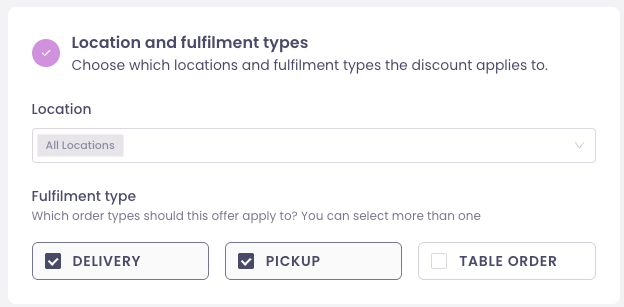
- Under Locations, choose which stores the discount applies to.
- Under Fulfilment Type, select:
- DELIVERY
- PICKUP
- (and/or any other available modes as needed)
This lets you limit the discount to specific stores and order types.
Set “Percentage Off” to 100%
In the discount configuration:
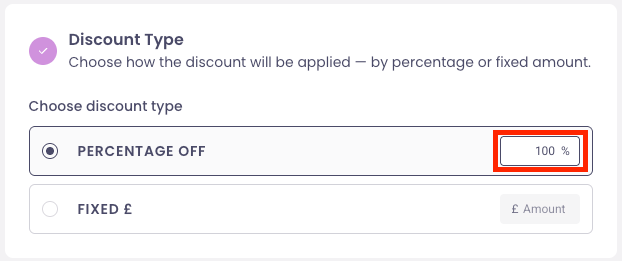
- Set Discount Type to PERCENTAGE OFF.
- Set the Percentage to 100%.
This means the discount will fully cover the configured basket components.
Choose basket components
Under Basket components, select what the discount should cover:
- ALL PRODUCTS
- DELIVERY CHARGE
- ADDITIONAL FEE
Selecting all three ensures the entire basket total becomes £0 at checkout for qualifying orders.
Note: This is commonly used in workflows where:
- Customers place orders at £0 using a unique 100% code, and
- The merchant later generates an undiscounted invoice (e.g. in Composer) based on the original pricing.
Optional usage restrictions
You can apply restrictions to control the use of the 100% basket discount:
- LIMIT TOTAL USAGE
- Cap the number of times the code can be used across all customers.
- LIMIT USAGE PER CUSTOMER
- Limit how many times each individual customer can redeem the code.
- VALUE LIMIT PER ORDER
- Set a maximum order value that can be discounted (e.g. only discount up to £500 per order).
These controls help manage risk and ensure the discount is used only as intended.
Calculation rules
You can define rules for how discounts and any minimum spend are calculated.
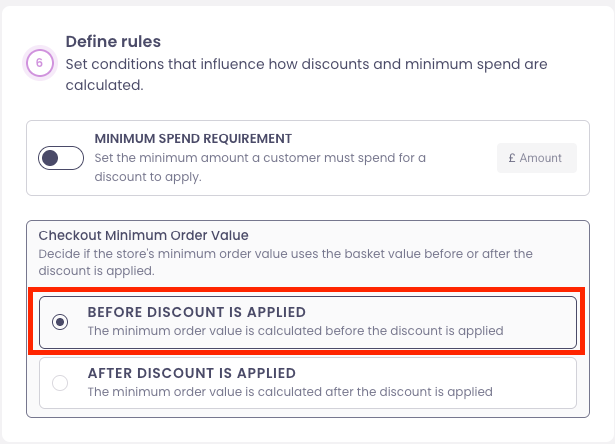
- For 100% basket discounts, select:
“BEFORE DISCOUNT IS APPLIED”
This ensures that any minimum basket requirements are checked against the original basket value before the discount is applied.
Finally click Create Discount.
Create a Buy One, Get One discount
This is especially useful for:
- Boosting average order value by encouraging customers to add a second item.
- Running “Buy 1, get 1 free/50% off” promotions on key menu lines (e.g. burgers, pizzas, desserts).
Select Product as the discount scope
- In Controls → Discounts → + ADD DISCOUNT, choose the PRODUCT discount type.
- This ensures the discount is applied to specific items or categories, rather than the whole basket.
Configure how the code is applied
Under Method:
-
MANUAL (recommended for short campaigns or targeted offers)
- The customer must enter the discount code at checkout.
- Ideal when advertising a promo code (e.g. on social or email) or sharing with a specific group.
-
AUTOMATIC
- The discount is automatically applied when the order meets your configured criteria.
- Best for always‑on or prominently advertised Buy One, Get One offers.
Define the Buy One, Get One discount details
Fill in the following:
- Discount code (for Manual)
- At least 4 alphanumeric characters.
- Examples:
B1G1FREE,PIZZA50,BURGERBUDDY.
- Description
- Visible to customers at checkout.
- Examples:
- “Buy 1 pizza, get the 2nd 50% off.”
- “Buy any burger, get another free.”
- Start / End dates (optional)
- Use Start date and End date to schedule when the Buy One, Get One is valid.
- Leave End date blank for an open‑ended promotion.
- If no dates are set, the code can be used immediately after creation.
Choose locations and fulfilment types
If you have multiple locations:
- Under Locations, choose which stores the discount applies to.
- Under Fulfilment Type, select:
- DELIVERY
- PICKUP
- TABLE ORDER (and/or any other available modes as needed)
This lets you limit the Buy One, Get One to specific stores and order channels (e.g. collection‑only).
Set “Buy One, Get One Specials”
In the discount configuration:
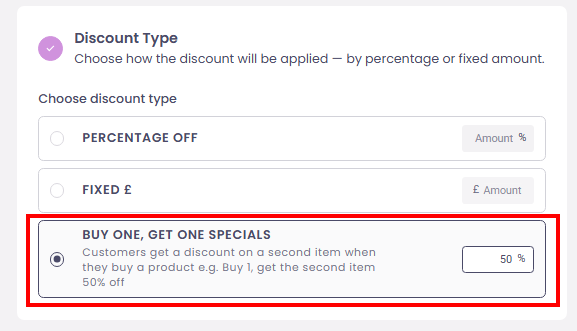
- Under Choose discount type, select BUY ONE, GET ONE SPECIALS.
- Set the Amount %:
- 100% for “Buy 1, get 1 free”.
- 50% for “Buy 1, get the second item 50% off”.
Choose eligible products
Under Eligible products, decide what is included:
- ALL PRODUCTS – apply Buy One, Get One across the full menu (use with caution).
- SPECIFIC CATEGORIES – e.g. all Burgers, Pizzas, Desserts.
- SPECIFIC PRODUCTS – select individual items.
Under Apply Discount Scope:
- PRODUCTS
- Applies the discount only to the base product; modifiers remain full price.
- PRODUCTS AND MODIFIERS
- Applies the discount to both the base product and any selected modifiers.
Optional usage restrictions
You can apply Restrictions to control how BOGO is used:
- QUANTITY LIMIT PER ORDER
- Limit how many items per order can receive the BOGO benefit (e.g. up to 2 discounted items).
- VALUE LIMIT PER ORDER
- Cap the maximum discount value per order (e.g. only discount up to £20).
- LIMIT TOTAL USAGE
- Cap the number of times the code can be used across all customers.
- LIMIT USAGE PER CUSTOMER
- Limit how many times each individual customer can redeem the offer.
These controls keep the promotion profitable and prevent abuse.
Calculation rules
Under Define rules:
- Use Discounted product to decide which item gets the discount:
- LOWEST PRICED PRODUCT – common for “mix & match” deals.
- HIGHEST PRICED PRODUCT – more generous, but higher cost.
Finally click Create Discount.
Create a fixed amount discount
This is especially useful for:
- Offering “£10 off” welcome or voucher codes.
- Fixed incentives on higher‑value orders (e.g. £10 off when you spend £50+).
Choose where the fixed amount applies
- In Controls → Discounts → + ADD DISCOUNT, select either:
- BASKET – to take a fixed amount off the whole basket total, or
- PRODUCT – to discount specific items or categories by a fixed £ amount.
- This defines whether the reduction targets the entire order or only selected products.
Configure how the code is applied
Under Method:
- MANUAL (typical for voucher‑style codes)
- The customer must enter the discount code at checkout.
- Ideal for campaign codes (e.g. flyers, email, social) or one‑off gestures.
- AUTOMATIC
- The discount is automatically applied when the order meets your criteria.
- Useful for short‑term “£5 off this weekend” style promotions.
Define the fixed amount details
Fill in:
- Discount code (for Manual)
- At least 4 alphanumeric characters.
- Examples:
TAKE5,WELCOME10,SAVE15.
- Description
- Visible at checkout.
- Examples:
- “£5 off orders over £25.”
- “£10 off your first order.”
- Start / End dates (optional)
- Set Start and End dates to schedule when the discount is active.
- Leave End date blank for an open‑ended voucher.
- If not set, the code becomes usable immediately.
Choose locations and fulfilment types
- Under Locations, choose which stores the discount applies to.
- Under Fulfilment Type, select:
- DELIVERY
- PICKUP
- TABLE ORDER (and/or any other modes as required)
This keeps the offer restricted to relevant sites and channels.
Set the fixed amount
In the discount configuration:
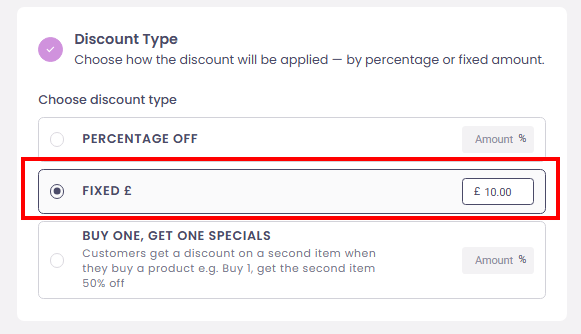
- Under Discount Type, select FIXED £.
- Enter the Amount (e.g.
5for £5 off,10for £10 off).
If you selected a Product discount, you will also configure:
- Eligible products – ALL PRODUCTS, SPECIFIC CATEGORIES, or SPECIFIC PRODUCTS.
- Apply Discount Scope – PRODUCTS only or PRODUCTS AND MODIFIERS.
Optional usage restrictions
Under Restrictions, you can:
- LIMIT TOTAL USAGE
- Cap the total number of redemptions across all customers.
- LIMIT USAGE PER CUSTOMER
- Restrict how many times each customer can use the code (e.g. once per account).
(Quantity and value limits are less common for fixed £ discounts, but may still be used where required.)
Calculation rules
Under Define rules:
- Turn on MINIMUM SPEND REQUIREMENT if you want a qualifying spend (e.g. orders must be at least £25 to get £5 off).
- Configure CHECKOUT MINIMUM ORDER VALUE to decide whether minimum order checks use the basket value before or after the discount.
Finally click Create Discount.
Create % off on specific items
This is especially useful for:
- Category‑based promotions (e.g. “20% off desserts”).
- Time‑bound offers on certain lines (e.g. “10% off coffee before 11am”).
Select Product as the discount scope
- In Controls → Discounts → + ADD DISCOUNT, choose the PRODUCT discount type.
- This ensures the discount targets specific menu items or categories, not the entire basket.
Configure how the code is applied
Under Method:
- MANUAL
- The customer must enter the discount code at checkout.
- Ideal for promo codes advertised in specific channels.
- AUTOMATIC
- The discount is automatically applied whenever basket conditions are met.
- Useful for always‑on or scheduled promotions that don’t require a code.
Define the percentage discount details
Fill in:
- Discount code (for Manual)
- At least 4 alphanumeric characters.
- Examples:
DESSERT20,COFFEE10,PIZZA25.
- Description
- Shown to customers at checkout.
- Examples:
- “20% off all desserts – this weekend only.”
- “10% off all coffees before 11am.”
- Start / End dates (optional)
- Set Start and End dates to control when the discount is active.
- Leave End date blank to keep it open‑ended.
Choose locations and fulfilment types
- Under Locations, select where the item discount is valid.
- Under Fulfilment Type, choose:
- DELIVERY
- PICKUP
- TABLE ORDER (and/or any other modes you support)
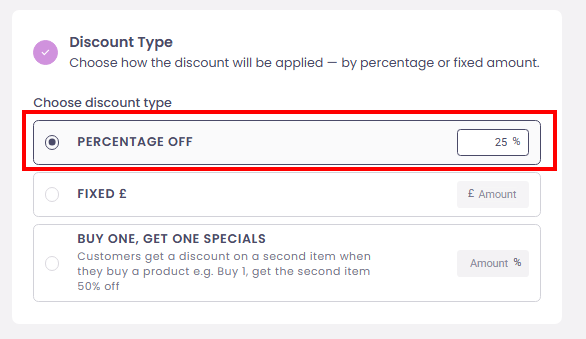
Set “Percentage Off” for specific items
In the discount configuration:
- Under Discount Type, select PERCENTAGE OFF.
- Enter the Percentage (e.g. 10, 15, 20, 25).
Choose eligible products
Under Eligible products:
- ALL PRODUCTS – discount everything (not typical for “specific items”).
- SPECIFIC CATEGORIES – e.g. only Desserts, Drinks, or Sides.
- SPECIFIC PRODUCTS – select individual menu items.
Under Apply Discount Scope:
- PRODUCTS – discount only the base product; modifiers stay full price.
- PRODUCTS AND MODIFIERS – discount both the product and any paid modifiers.
Optional usage restrictions
Under Restrictions, you can:
- QUANTITY LIMIT PER ORDER
- Limit how many items per order can receive the percentage discount (e.g. up to 3 discounted mains).
- VALUE LIMIT PER ORDER
- Cap the total discount amount per order.
- LIMIT TOTAL USAGE and LIMIT USAGE PER CUSTOMER
- Control how often the code can be used overall and per customer.
Calculation rules
Under Define rules:
- Use MINIMUM SPEND REQUIREMENT to enforce a minimum basket value before the discount applies.
- Configure CHECKOUT MINIMUM ORDER VALUE (before/after discount) to fit your store policy.
Finally click Create Discount.
Create Free Delivery / Delivery fee discount
This is especially useful for:
- Encouraging higher‑value delivery orders (e.g. “Free delivery over £40”).
- Running time‑limited “£X off delivery” campaigns on quieter days.
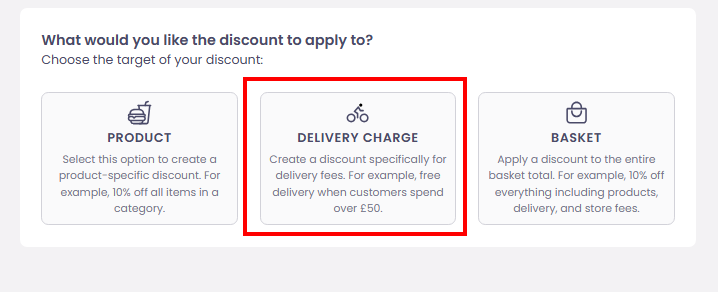
Select Delivery Charge as the discount scope
- In Controls → Discounts → + ADD DISCOUNT, choose the DELIVERY CHARGE discount type.
- This ensures the discount is applied only to delivery fees, not to products.
Configure how the code is applied
Under Method:
- MANUAL
- The customer must enter the code at checkout (e.g.
FREESHIP). - Good for targeted or invite‑only free‑delivery offers.
- The customer must enter the code at checkout (e.g.
- AUTOMATIC
- The delivery discount is applied automatically when criteria are met.
- Ideal for headline “Free delivery over £X” promotions.
Define the delivery discount details
Fill in:
- Discount code (for Manual)
- At least 4 alphanumeric characters.
- Examples:
FREESHIP,DELIVERY2OFF,MONDAYFREE.
- Description
- Visible on the checkout page.
- Examples:
- “Free delivery on orders over £40.”
- “£2 off delivery every Monday.”
- Start / End dates (optional)
- Schedule when the offer should start and end.
- Leave End date blank if you want it to run until you manually disable it.
Choose locations and fulfilment types
- Under Locations, select which stores the delivery discount applies to.
- Under Fulfilment Type, usually select:
- DELIVERY only
- (You can include other modes if you also charge a delivery‑like fee there.)
Set the delivery discount value
In the discount configuration:
- For free delivery:
- Select PERCENTAGE OFF and set the percentage to 100%.
- For reduced delivery:
- Either use PERCENTAGE OFF (e.g. 50% off delivery), or
- Select FIXED £ and set a fixed amount (e.g.
2for £2 off delivery).
Optional usage restrictions
Under Restrictions, you can:
- LIMIT TOTAL USAGE
- Cap how many times the free/discounted delivery can be redeemed overall.
- LIMIT USAGE PER CUSTOMER
- Limit each customer to a certain number of uses.
- VALUE LIMIT PER ORDER (when using percentages)
- Cap the maximum amount of delivery fee that can be discounted.
These options protect your margins on very large or repeated orders.
Calculation rules
Under Define rules:
- Turn on MINIMUM SPEND REQUIREMENT if free or discounted delivery should only apply above a certain basket value (e.g. £40).
- Use CHECKOUT MINIMUM ORDER VALUE to control whether the store’s minimum order is checked before or after discounts are applied.
Finally click Create Discount.
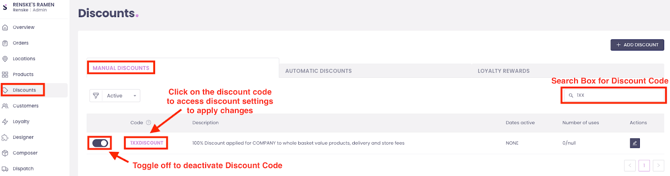
Editing, deactivating, and managing existing discounts
To update or deactivate an existing discount:
- Go to Controls → Discounts.
- Use the search bar to find the discount code or name.
- If you created a Manual discount, look under the Manual Discounts tab (if your view is separated by type).
- Click the discount to:
- Edit fields (e.g. description, end date, usage limits), or
- Deactivate the code so it can no longer be used.