
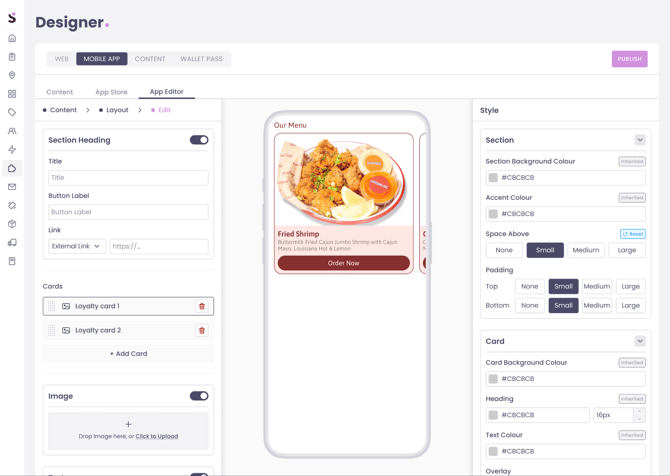
The App Editor lets you add and arrange homepage sections, choose how content is displayed, and style each section to match your brand. As you make changes, a live phone preview shows how the homepage will look in your app.
How to access the App Editor
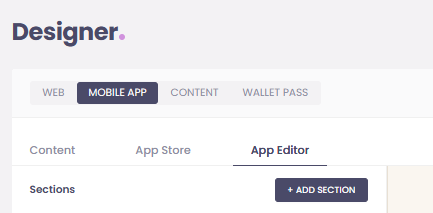
- Log in to Controls.
- Go to Designer.
- Select the Mobile App tab.
- Open the App Editor tab.
From here, you can build and customise the homepage for your branded app.
What you can do in the App Editor
The App Editor gives you control over both the content and the look and feel of your app homepage.
You can:
- Add new homepage sections
- Choose the type of section you want to use
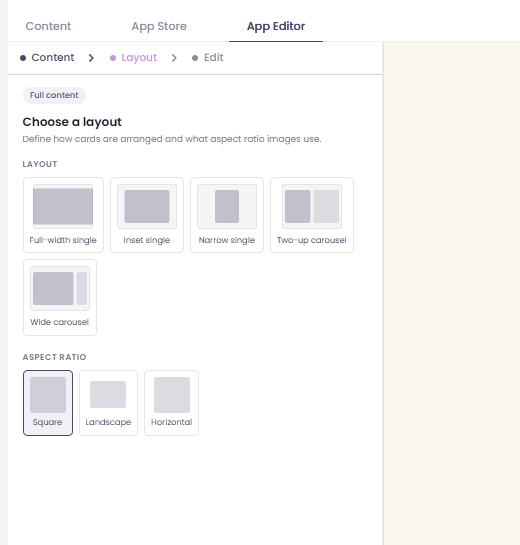
- Select how each card is laid out
- Update titles, button labels, links, and images
- Reorder cards within a section
- Adjust colours, spacing, and typography-style settings
- Preview changes on a live phone mockup before publishing
This makes it easier to create a branded ordering experience that reflects what matters most to your business.
Available section types
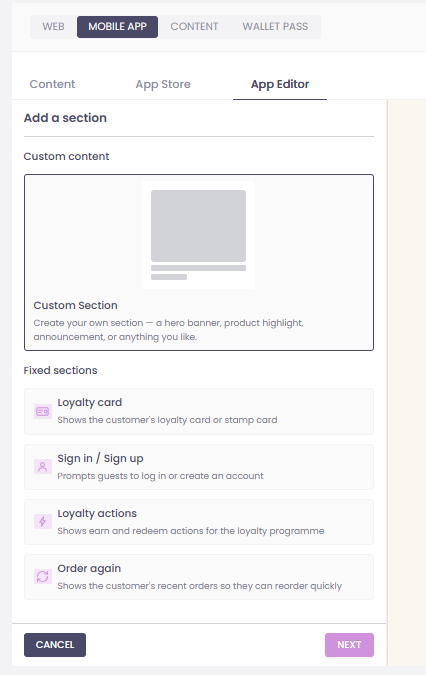
When you click + Add Section, you can choose from a mix of custom and fixed sections.
Custom section
Use Custom Section to create flexible homepage content such as:
- Hero banner
- Product or seasonal feature
- New launch or announcement
- Promotion or campaign
- Link to a key part of your app experience
This is the most flexible option and can be styled to suit your brand.
Fixed sections
You can also add built-in sections designed for common app actions:
- Loyalty card – shows the customer’s loyalty card or stamp card
- Sign in / Sign up – prompts guests to log in or create an account
- Loyalty actions – shows ways customers can earn or redeem loyalty rewards
- Order again – helps customers quickly reorder from recent purchases
These sections are useful for bringing key actions to the homepage and making the app more convenient for returning customers.
Choose how your content is displayed
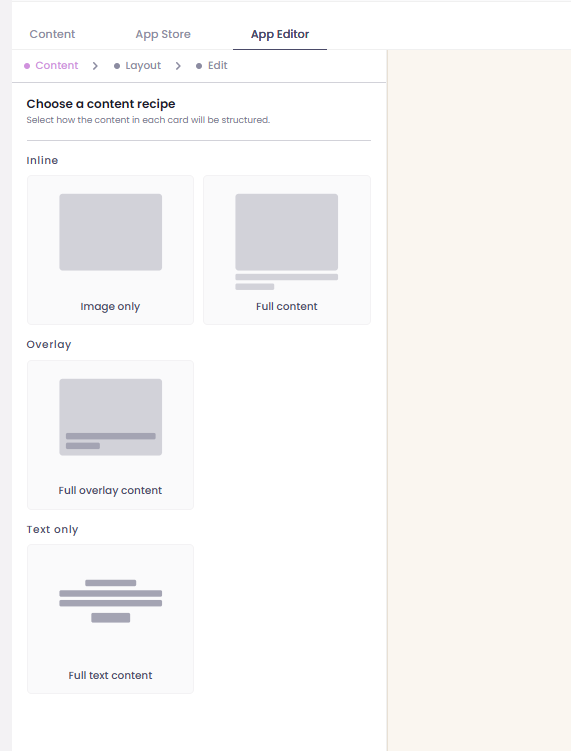
For custom content, you can choose a content recipe to control how each card appears.
Available layouts may include:
- Image only
- Full content
- Full overlay content
- Text only
This gives you flexibility to decide whether the focus should be on imagery, messaging, or a stronger call to action.
Customise the style of each section
Each section can be styled individually inside the editor.
Depending on the section and layout you choose, you can update settings such as:
- Section background colour
- Accent colour
- Card background colour
- Heading colour
- Text colour
- Button label
- Spacing above the section
- Top and bottom padding
- Image content
Some style fields may inherit existing settings by default, which helps keep your app design consistent.
Rearrange cards and content
Within a section, you can manage multiple cards and control the order they appear in.
You can:
- Add new cards
- Remove cards you no longer need
- Drag cards into a new order
- Edit each card’s content individually
This makes it easy to build a homepage around the parts of your app you want customers to see first.
Use the live preview before you publish
As you edit, the phone preview updates alongside the editor.
Use this preview to check:
- How images are cropping
- Whether titles and text fit neatly
- How buttons appear
- Whether spacing feels balanced
- Which sections are most prominent on a mobile screen
This is the quickest way to sense-check your homepage before making it live.
How to publish your changes
Once you are happy with your homepage:
- Review the live preview.
- Click Publish in the top-right corner.
After publishing, reopen the app on your device to confirm the latest version of the homepage is showing.
🏆 Best practices
To get the most from the App Editor:
- Keep your most important content near the top of the homepage
- Use clear, short headings and button labels
- Choose brand-aligned colours that keep text easy to read
- Use high-quality images sized for mobile
- Avoid overcrowding the homepage with too many competing sections
- Use loyalty and reorder blocks where they support repeat ordering
- Check every change in the live preview before publishing