What do the brand and web designer do
We've given our Designer a bit of an overhaul, so you can make your Slerp Shop look exactly how you want it to be.
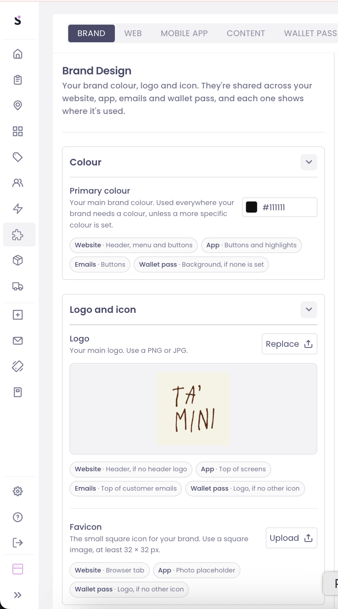
The Brand section let's you set styles and images that span across multiple platforms and touch points: they are shared across your website, app, emails and wallet pass
The Web section lets you customise what your website looks like. Here you can set colours, buttons, borders and text properties to match with your brand identity.
Why does this matter
Your Direct Ordering Channel should look and feel like a natural extension of your brand.
With Slerp's new Web Designer, you can create a consistent journey for your customers while increasing your brand recognition.
Getting started
Before starting in Controls, it helps to have your brand assets at hand. Gather your brand colours (in hex of RGB format), imagery and fonts for an easy set up
Creating your Brand Assets
- In Controls, go to Designer and open the Brand tab and set the following
- Primary colour: Your main brand colour, used across all touchpoints
- Logo: Used on web, app, emails and wallet passes
- Favicon: Browser tab icon, used as a fallback image on app and wallet pass
Styling your Web pages
When your Brand is set up, it's time to style your web section. On the left hand editor, you'll find the Style settings that apply throughout your Slerp web pages.
In the center of the page, a live preview of your site is shown. Any changes you make are directly applied and you can immediately see what they look like.
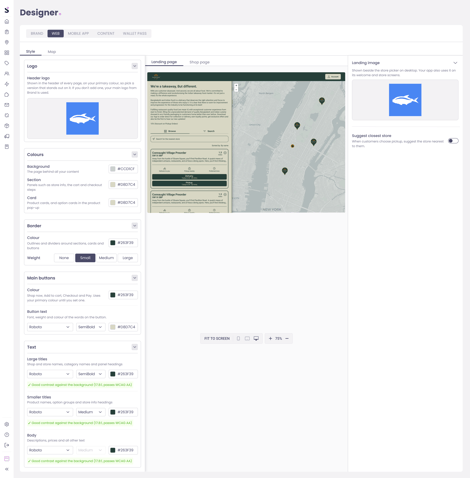
- Header logo: shown in the header of every page, on top of your primary colour
- Colours: Your shop is divided in to 3 sections: Background, Section and Card. Each can have a unique colour set
- Border: You can define the weight and the colour of your borders. You can also choose to have none at all
- Buttons: Buttons have their own colour, font, font weight and font colour. If none is set, your primary colour is used
- Text: There are three different groupings of text on your website: Large Titles, Small Titles and Body. Each of them can have their own font, weight and colour.
Web settings
On the right hand side of the editor, you will find page settings.
Landing Page
Here you set your landing page image, and nearest store suggestion
Shop Page
This is where you upload your shop page banner (the hero image at the top of your shop) and settings for the rest of the web journey:
- Product Page Layout (Block or List view)
- Promo Banner: A short message at the top of you shop on app and web
- Order Note placeholder: Example text in the order note box at checkout
- Delivery Note placeholder: Example text in the delivery note box at checkout
- Gifting:Let customers add a gift wrap at checkout
- Custom Field: Add an additional, custom field at checkout with a name and placeholder for any extra information you may need to fulfil your orders. This field may be optional, and can be shown for some or all order types.
Page annotations
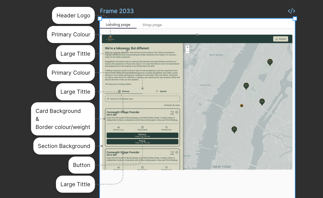
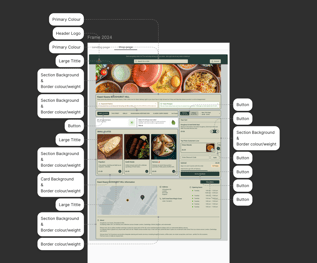
For a precise reference of which settings apply to which parts of your shop, please see the annotated screens below. Note that your landing pages do not have a background colour: they are made up of section and card colour