
If your business has more than one location, or you run franchise stores with their own billing, Slerp keeps each location’s documents separately. That way each site, franchisee or accounts team can find exactly what was billed to them.
Where to find a location’s documents
- Log in to Controls.
- Go to Locations and click the store’s name.
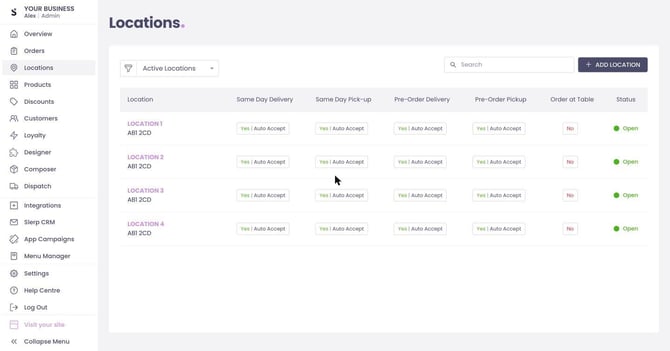
- Click Settings (top right).
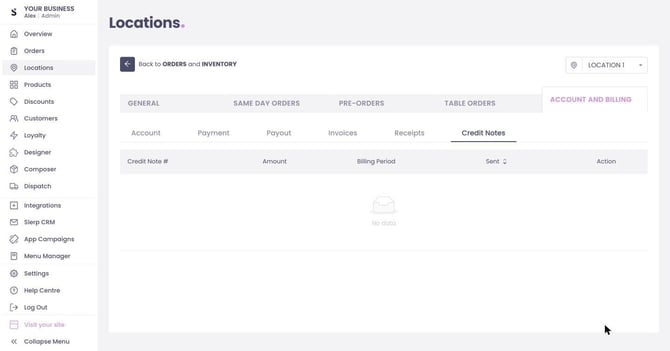
- Open the Account and Billing tab.
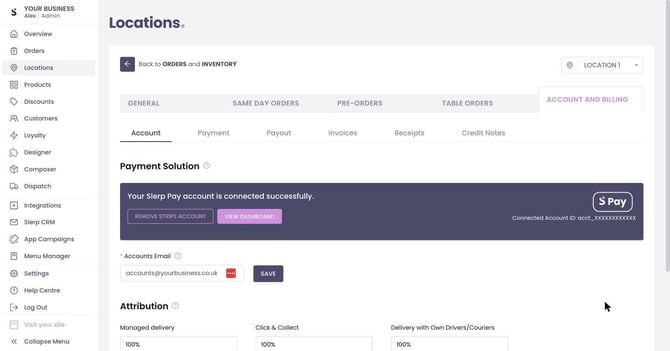
- Choose Invoices, Receipts or Credit Notes.
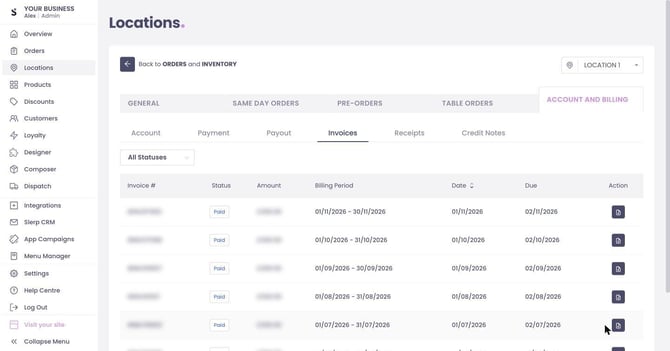
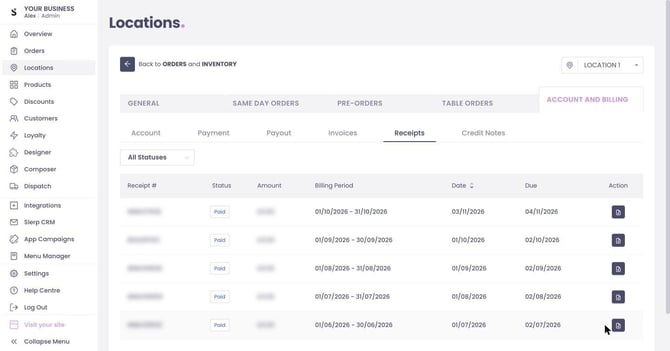
Each list shows the document number, status, amount, billing period and dates, with a download button for each document.
Please note: these tabs are available to partners using Slerp Pay. If you’re not on Slerp Pay, your invoices are still emailed to your accounts email address. Contact finance@slerp.com if you need a copy.
What’s in each tab
- Invoices: your monthly Slerp fees for that location, such as the platform (SaaS) fee.
- Receipts: your monthly receipt for order-related fees (commission, courier and payment fees). No payment is needed for these.
- Credit Notes: any credits issued to that location.
Where to find documents for your whole business
Invoices, receipts and credit notes billed to your main company account are under Settings → Accounts and Billing.
Who gets the invoice emails?
When an invoice is issued for a location, we email that location’s Accounts Email. If it doesn’t have one, we email the location’s main email instead. To change it, go to Locations → [your store] → Settings → Account and Billing → Account and update Accounts Email. That address will receive the location’s invoices and payment notifications.
Need help?
If you can’t find a document, or something on an invoice doesn’t look right, email us at finance@slerp.com with the location name and the invoice number.