
Overview
Leat is an outside loyalty provider. When you connect it, Leat becomes your loyalty engine: your customers earn and spend loyalty in Leat, and one programme runs across every channel you sell through. Vouchers and rewards can be linked so they can be redeemed on Slerp.
To connect, you will need to:
- Install Slerp's app in Leat.
- Create a shop in Leat for each of your Slerp stores.
- Copy your personal access token from Leat.
- Paste the token into Controls and link each store to its Leat Shop.
Only Admin users in Controls can connect Leat.
Step 1. Get set up in Leat
In your Leat dashboard:
- Open Integrations Marketplace, select Slerp, and select Install in the top right.
- Create a shop for each Slerp store that should offer loyalty. Slerp cannot create Leat Shops for you. You can add more later.
- Go to Auth and copy your personal access token. If you have already installed the Slerp app, you can use your existing token or generate a new one. Keep the tab open, because you will paste the token in the next step.
Step 2. Connect in Controls
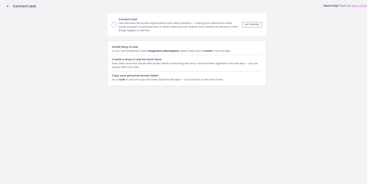
- In Controls, open Integrations. Under Loyalty, select CONNECT next to Leat.

-
The Connect Leat page lists the three things to do in Leat first. Select GET STARTED.
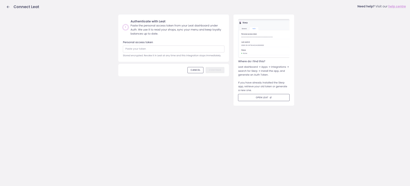
- Paste your personal access token into Personal access token and select CONTINUE. The token is stored encrypted. If you revoke it in Leat, the integration stops straight away.
Step 3. Link your stores
Choose which Leat Shop each Slerp store belongs to. The integration only works for stores that are linked to a Leat Shop.
For each store:
- Choose its Leat Shop.
- Choose whether Push Order to Leat is on. It is on by default. Turn it off only if that store's Slerp orders already reach Leat another way, such as through your POS or middleware. Otherwise Leat receives the order twice.
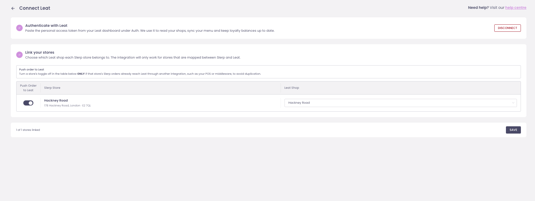
Two stores can share one Leat Shop. Archived stores are not shown. The page shows how many stores are linked, for example "1 of 1 stores linked". Select SAVE.
Connecting does three things:
- Saves each store's Leat Shop and Push Order to Leat setting.
- Switches your loyalty engine to Leat. From then on Slerp's own loyalty does not run for you. See What happens with my Slerp loyalty when I use Leat?
- Sends Leat your customers, menu and Slerp reward list. See What information is shared between Slerp and Leat.
Changing your stores later
Select MANAGE next to Leat in Integrations. To stop sending a store's orders to Leat, choose None for its Leat Shop. Choose a shop again to turn it back on.
If your token stops working
If Leat rejects the token, for example because it was revoked, generate a new personal access token for the Slerp app in Leat. Then paste it into the token field on the Leat page in Controls. Until you do, Slerp cannot send updates to Leat.
Disconnecting
Select DISCONNECT on the Leat page. Slerp then:
- Unlinks each store and turns its Push Order to Leat off.
- Removes the connection to Leat and deletes the saved token.
- Switches your loyalty engine back to Slerp's own.
Disconnecting does not remove anything from Leat. The customers, menu and reward list Slerp sent stay there, and your order history is untouched. To reconnect, start again from Step 2. Every store comes back unlinked.