
Store tags help customers find the right store when you have several. A customer looking for catering can pick Catering and see only the stores that offer it.
1. Create a tag
Only an Admin can create tags.
- Log in to Controls, your Slerp back office on the web, and go to Locations.
- Open a store and stay on its Details tab.
- Next to Store tags, click Manage tags, or type a new name into the Store tags box and choose to create it.
- In Create a store tag, start with a suggestion (Catering, Events or Pubs) or choose Create your own.
- Enter the Tag name and, if you like, pick an icon: Catering, Pub, Events or Office.
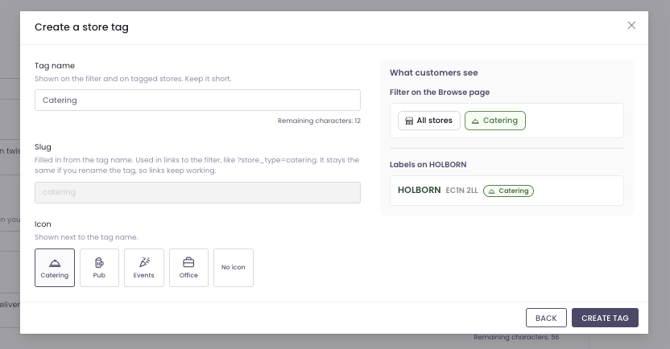
💡 A tag name can be up to 20 characters and must include at least one letter or number. Each tag needs a different name.
2. Add tags to a store
Admins, and Managers of the store, can do this.
- Go to Controls → Locations and open the store.
- On the Details tab, choose the tags in Store tags. A store can have several.
- Click Save.
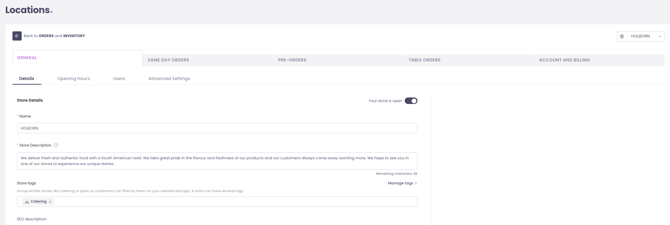
💡 To take a tag off a store, remove it from Store tags and click Save.
3. What your customers see
On your website's store list, customers see a row of filters: All stores, then your tags. Picking one or more tags shows only the stores with any of them, in the list and on the map. Each store shows its tags next to its name.
- A tag shows as a filter only when some, but not all, of your listed stores have it.
- Hidden stores are left out of the filters, unless the customer came from that store's own link.
- Each filter counts the stores offering the delivery or pickup choice the customer has made.
4. Good To Know
- A store can have multiple tags. For example, if you have a catering store that also doubles as a Christmas store, you can apply both tags.
- When customers select a tag, the URL of your landing page updates. This means you can link to a pre-filtered sub section of your stores from your own website
-
If a tag is on no store, only on hidden stores, or on every store customers can see, customers won't see it as a filter. Manage tags warns you when this happens.