
In cases where you cannot fulfill an order (e.g. out of stock), you can issue a partial or full refund to the customer.
Instructions for refunding via the Controls Dashboard are available in the ⏪ How to refund an order on the Controls Dashboard? article.
Here are the steps to refund an order in the Slerp app:
- Locate and select the order you want to refund.
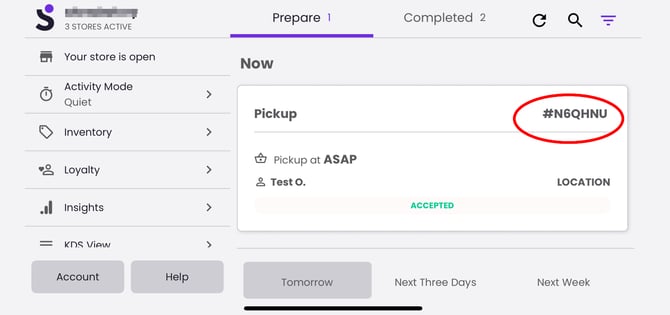
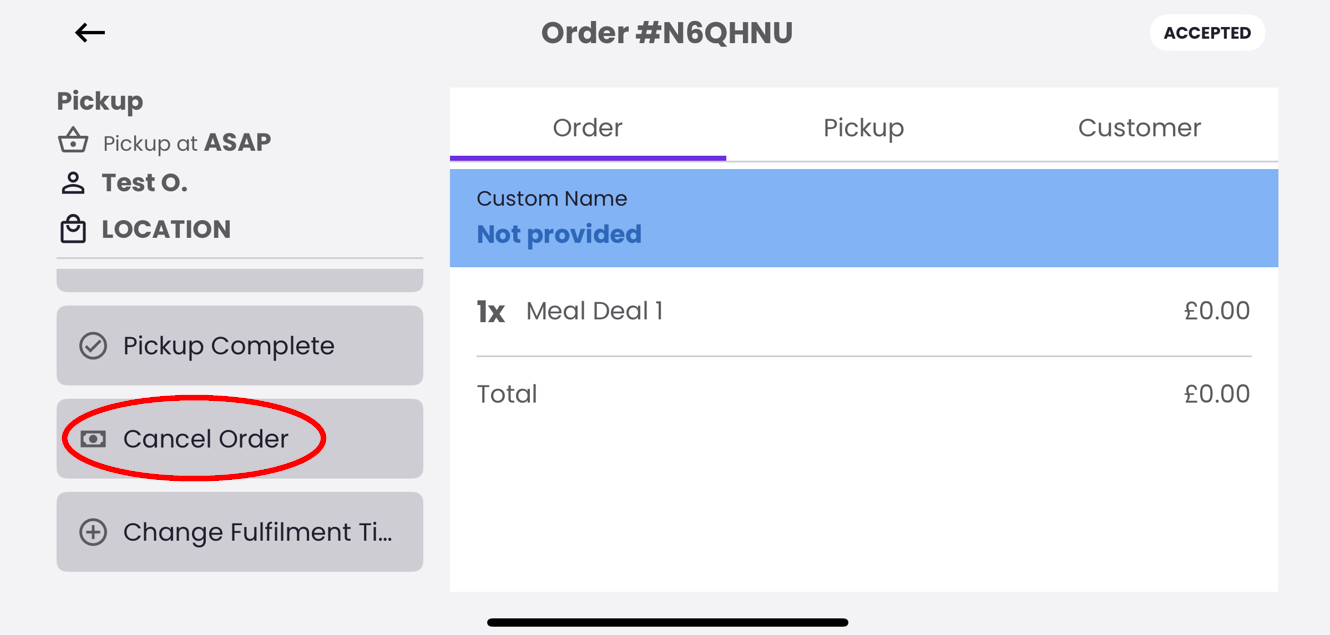
- Click "Refund Order" or "Cancel Order"
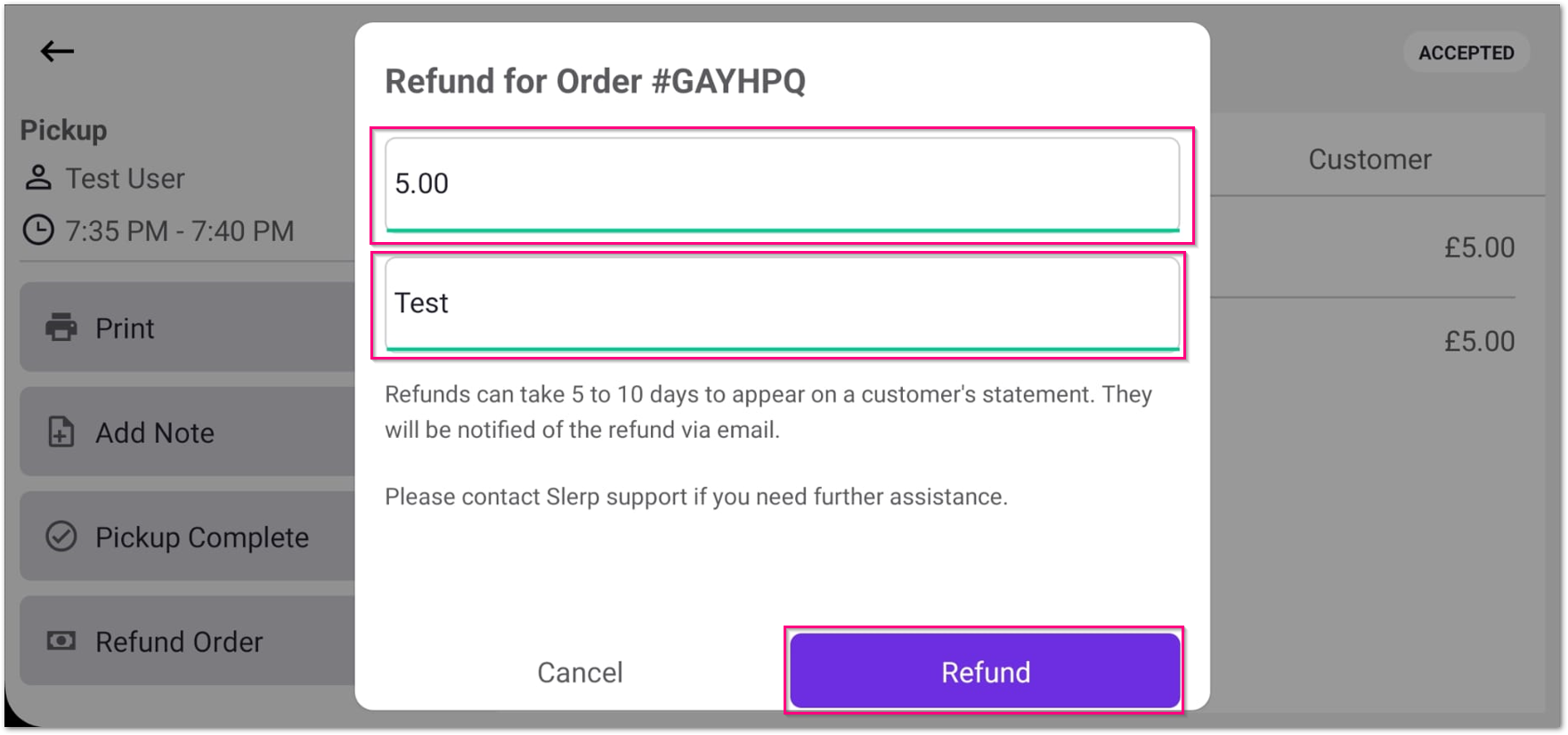
- Enter the refund amount and add the refund reason as a note, then click Refund.
- A status message will appear confirming the refund.

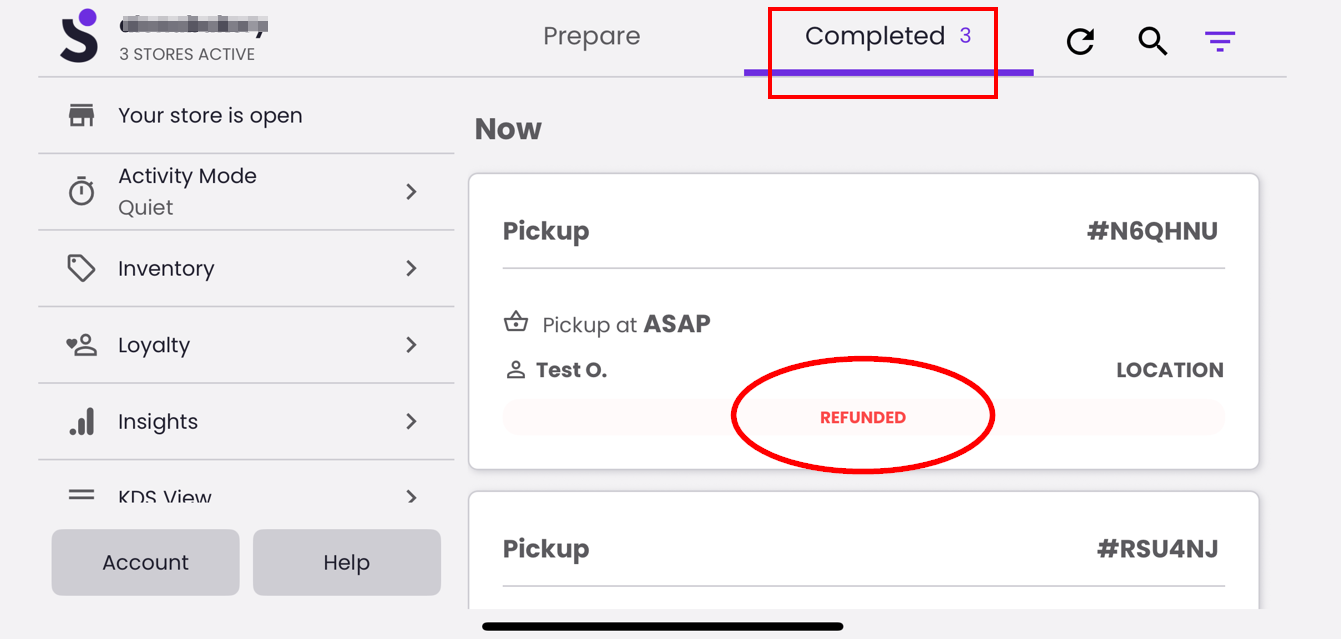
- The order status will update to REFUNDED under the Completed tab.
📝 Please Note: It may take 5–10 days for the refund to appear on the customer’s bank statement. Customers will receive an email notification about the refund.
The past and/or future orders are not visible in the Slerp app, refunds must be processed via the Controls Dashboard.
For guide, check ⏪ How to refund an order on the Controls Dashboard? article.