
Encouraging customers to order directly through your own ordering site helps you reduce reliance on third-party marketplace commissions, keep the ordering experience under your brand and build stronger customer relationships. With access to your customer data, you can support repeat orders through your own marketing and loyalty activity.
These changes are made in Google Business Profile, not in Slerp. This guide is provided to help Slerp partners manage their Google listing.
Access your business profile
- Sign in to the Google account you use to manage your Business Profile.
- Search for your business name on Google or open Google Maps and find your business.
- Open your Business Profile management options. If you manage multiple locations, select the location you want to update.
Navigate to food ordering settings
- Select Food ordering.
- Find the provider or ordering link you want to hide or remove.
If food ordering was previously turned off: turn on Accept orders on your profile, then select Turn on to confirm. Google requires this to manage individual providers and links.
Manage third-party providers
To hide a provider such as Deliveroo, Uber Eats or Just Eat:
- Select the provider you want to hide.
- Select Show provider to customers.
- Turn off Show for pickup, Show for delivery, or both.
- Select Save, then Confirm.
To hide the provider completely, turn off both pickup and delivery. You can turn these options back on at any time.
Google says updates typically appear on Google Search and Maps within a few hours.
Important: turning off Preferred for pickup or Preferred for delivery only changes your preferred provider. To hide a provider, use the Show provider to customers settings instead.
Remove a link you added
If you manually added a link to your website or ordering page:
- In Food ordering, select the link you added.
- Select Remove link.
- Select Remove to confirm.
Remove link applies to links you added yourself. For third-party providers, use the visibility settings above.
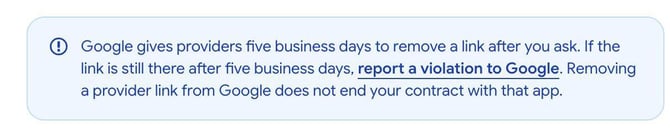
Need more help?
If your options look different, check Google’s guide to managing online ordering options for the latest instructions.
Google manages these settings. If you cannot access or update them, use the help options in Google Business Profile.