
Order Syncing
1. Why are my orders being rejected by Lightspeed?
The easiest way to understand why an order was rejected is to check directly in Lightspeed. Go to Operations > Online Orders, open the order, and look for the message shown under Issue.
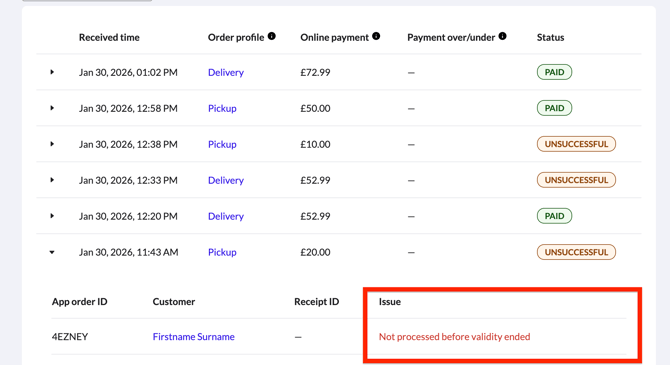
Below are some common causes and how to fix them.
a. Could not add item “xxx” (not found)
This means the item is not recognised by your POS. Check that your menu has been synced with your Slerp store and that your Lightspeed POS has been refreshed.
b. Not processed before validity ended
This means the order could not be sent to the POS, most likely because it was unavailable. Check that the POS is turned on and connected to the internet.
To accept orders ensure that your POS is always on and connected to the internet.
c. Overpayment
This usually means that prices in Slerp and Lightspeed do not match. In Slerp, re-sync the menu, then refresh the POS to make sure all products and prices are up to date.
d. Could not add item “item name” (check sales restrictions)
This error usually occurs when an item is out of stock in Lightspeed but is still marked as in stock in Slerp.
To resolve this, resync your menu in Controls. This will update item availability and ensure both systems match. Availability should update automatically in most cases. If the issue continues after resyncing, please contact Slerp Support for assistance.
Menu Syncing
1. Why are my menu items not being pulled from Lightspeed to Slerp?
Some items are excluded because they would fail when sent back to Lightspeed or because they aren’t supported online. Below are the most common reasons a product may be skipped:
a. The product has a manual price type
Items that allow customers to choose their own price aren’t supported on online ordering platforms.
b. The product is missing an accounting group
If a product doesn’t have an accounting group in Lightspeed, any order containing it will be rejected by Lightspeed.
c. The product has an accounting group, but the tax profile is incomplete
This usually means the accounting group assigned to this product has different tax rates configured per Order Profile, but the Slerp delivery and pickup Order Profiles are missing a tax rate.
To verify this is the issue, navigate to Menu > Accounting Groups and select the accounting group assigned to the affected product. Review the tax profile and check whether tax rates are configured per Order Profile. If the Slerp delivery and pickup profiles are missing a rate, this is likely the cause.
To fix this, contact Lightspeed Customer Support and ask them to add the correct tax rates for your Slerp delivery and pickup Order Profiles.
d. The product is marked as sub-item only
If in the Lightspeed back office, under Menu > Item List > select item > POS Settings > Sales Rules, the option Make this a sub-item that cannot be sold alone is selected, the item will be excluded. Sub-items can’t be displayed as standalone products.
e. The product is an item group
Item groups can only be used as modifiers for a product and cannot be sold as standalone items.
f. The product is in a sub screen
In the Lightspeed back office, go to Menu management > select menu and check whether the item is in a “Sub screen”. Items in sub screens are skipped and won’t be pulled into Slerp.
2. Why does marking an item out of stock mark another item out of stock?
This usually happens because the item you marked as out of stock is set up as a required modifier for another product in Lightspeed.
You can check this in the Lightspeed Back Office by going to: Menu > Item list > Select item > Combo structure
When a required modifier becomes unavailable, any product that depends on it will also become unavailable.
If you do not want both items to be affected, you should create separate products in Lightspeed:
-
One product used as the standalone item
-
A separate product used specifically as the modifier for the other item
This ensures that marking one item as out of stock does not automatically impact other products.
Refunding
1. How do I refund an order?
To make sure refunds stay in sync between Lightspeed and Slerp, refunds must be processed in Lightspeed.
In the POS, go to Receipts > select the correct receipt > Refund order.
Once the refund is completed in Lightspeed, the order will automatically be refunded in Slerp.
2. Why are partial refunds not showing in Slerp?
If you partially refund an order in Lightspeed, this information is not sent back to Slerp. This is a limitation of the Lightspeed API.
To issue a partial refund, you’ll need to do this in Controls instead. For more information on refunding an order in Controls, see here.