
What is the Map Designer?
The Map Designer lets you control the appearance of:
- The map background (land, roads, greenery, water, etc.)
- The overall lighting and theme (e.g. day / night styles)
- The labels used on the map
- The pins/markers that show your store locations
Customers will see your customised map on your landing page when they’re browsing locations and choosing where to order from.
Why this matters
A branded map helps you:
- Create a consistent experience – your landing page, imagery, and map all align with your visual identity.
- Highlight your locations clearly – design custom pins that stand out against your chosen map colours.
- Improve perceived quality – small design touches reinforce that customers are in your own, fully branded ordering journey, not a generic third‑party experience.
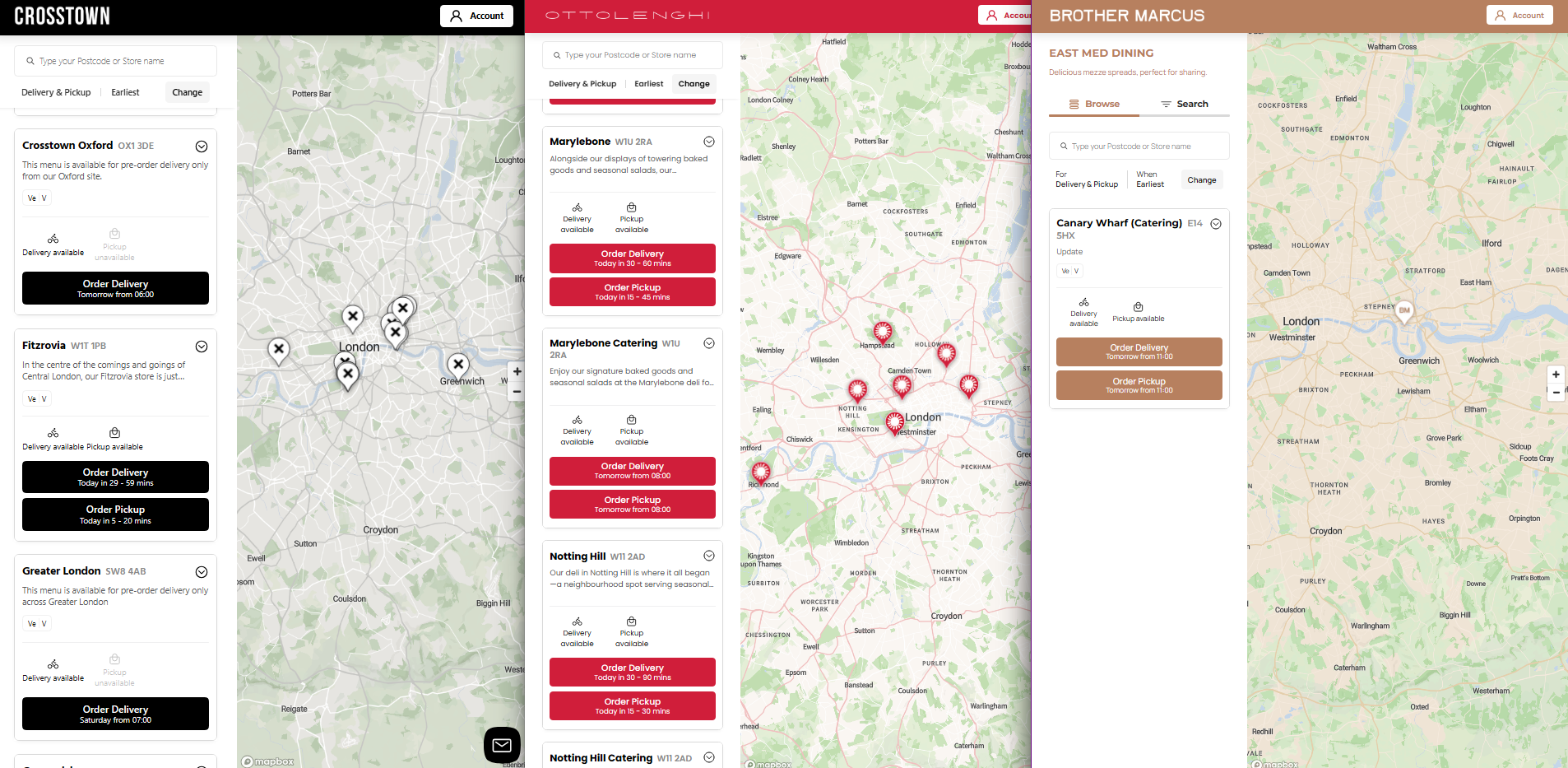
Here are some examples of partners using the map designer with branded pins to match the rest of their landing page design.
Getting started
You can start customising your map now:
- Open Designer → Web → Map.
- Adjust your colours, labels, and pins.
- Review the Preview panel.
- Save when you’re happy with the result.
The map shown here is the one that appears on your checkout landing page.
What you can customise
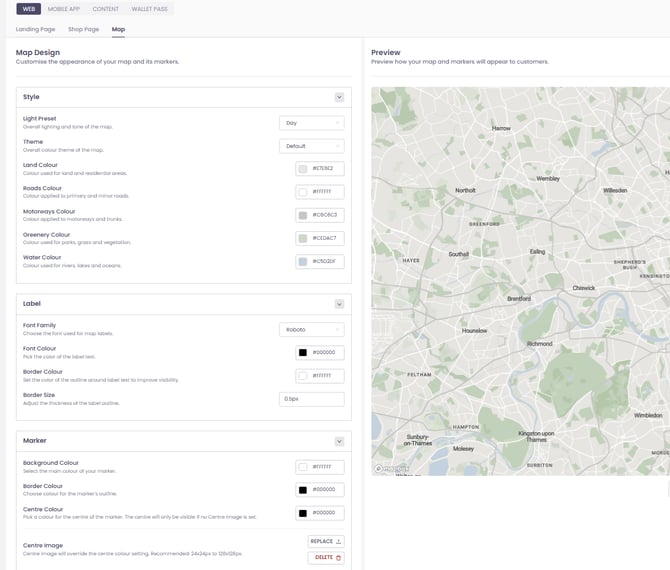
Under Map Design, you’ll see a set of grouped controls. Key options include:
Style
-
Light Preset
Choose the overall lighting and tone of the map (e.g. “Day” for a bright, neutral look, with additional options coming). -
Theme
Switch the base colour theme of the map. This sets the starting point for your palette, which you can then tweak further. -
Land Colour
Defines the colour of land and residential areas. -
Roads Colour
Sets the colour of primary and minor roads. -
Motorways Colour
Controls the colour of major roads and trunk routes. -
Greenery Colour
Adjusts the colour of parks, grass, and vegetation. -
Water Colour
Sets the colour of rivers, lakes, and other water areas.
Each of these can be set using a colour picker or hex code, so you can match your existing brand palette exactly.
Labels
-
Font Family
Choose the typeface used for street and area labels on the map. -
Font Colour
Set the colour of label text so it remains readable against your chosen map background. -
Border Colour & Size
Add or adjust a border around label text to boost contrast and legibility.
Pins / Location Markers
You can design the markers that appear where your sites are located—for example:
- Switch from generic pins to custom, branded markers that tie in with your logo or icon style.
- Adjust colours so pins stand out clearly on your chosen map colours.
- Ensure hover/active states remain visible for users browsing multiple locations.
How changes appear to customers
- Changes made in the Map Designer preview reflect exactly how your map will look to customers on your checkout landing page.
- Once you’re happy with your design, simply save your changes; the updated map will go live immediately.
- Existing location data and behaviour are unchanged – you’re only updating the visual styling.
✅ Best‑practice tips
- Start from your primary brand colours – set land/roads in a muted palette and reserve your highlight colour for pins.
- Prioritise readability – ensure labels and pins have enough contrast against the background.
- Keep it simple – avoid too many high‑saturation colours; a limited palette usually looks more premium.
If you’d like us to review your design or help you match it to your existing brand guidelines, just let the Support team know which colours and fonts you use and we can advise on a recommended setup.