
- Automatically open and close based on your schedule
- Run split shifts (multiple opening windows in a single day)
- Manually open or close a store from the Controls dashboard when needed
Auto Opening & Auto Closing
What is Auto Opening & Auto Closing?
Auto opening/closing lets Slerp automatically switch your store online and offline according to your trading hours. This reduces manual work for your team and helps ensure that customers can only place orders when you’re actually open.
When to use Auto Opening & Auto Closing?
- You have consistent daily hours (e.g. 8:00–17:00)
- You want the store to open/close automatically without staff intervention
- You want to avoid the risk of forgetting to open or close the store
How to set up Auto Opening & Auto Closing?
Simply add your operating hours by logging in as admin to Controls → Locations → Select the location you want to edit → Settings → Opening Hours tab → Save.
You can use this Quick Link ⚡for Locations tab
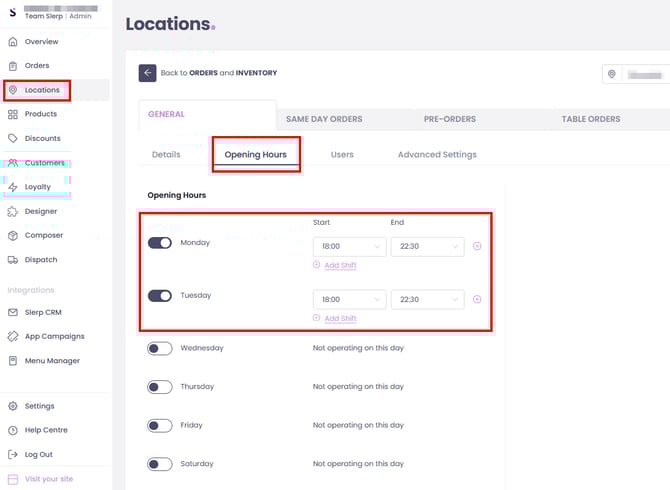
Once configured, the system will automatically bring your store online at opening time and offline at closing time based on this schedule.
Split Shifts (Multiple Opening Windows Per Day)
What is Split Shifts?
Split shifts allow you to set more than one opening period in a single day, for example:
- Lunch service: 11:30–15:00
- Dinner service: 17:30–22:00
This is useful if you close between services but still want Slerp to manage availability automatically.
When to use Split Shifts?
- You run lunch and dinner services with a break in between.
- You want the store to be closed for orders during the break, without manual switching.
- You have different prep/throughput expectations in different parts of the day.
How to set up split shifts?
Login as admin to Controls → Locations → Select the location → Settings → Opening Hours tab → For the chosen day, add your first shift (e.g. 11:30–15:00) → Add shift for the second (e.g. 17:30–22:00) → Save.
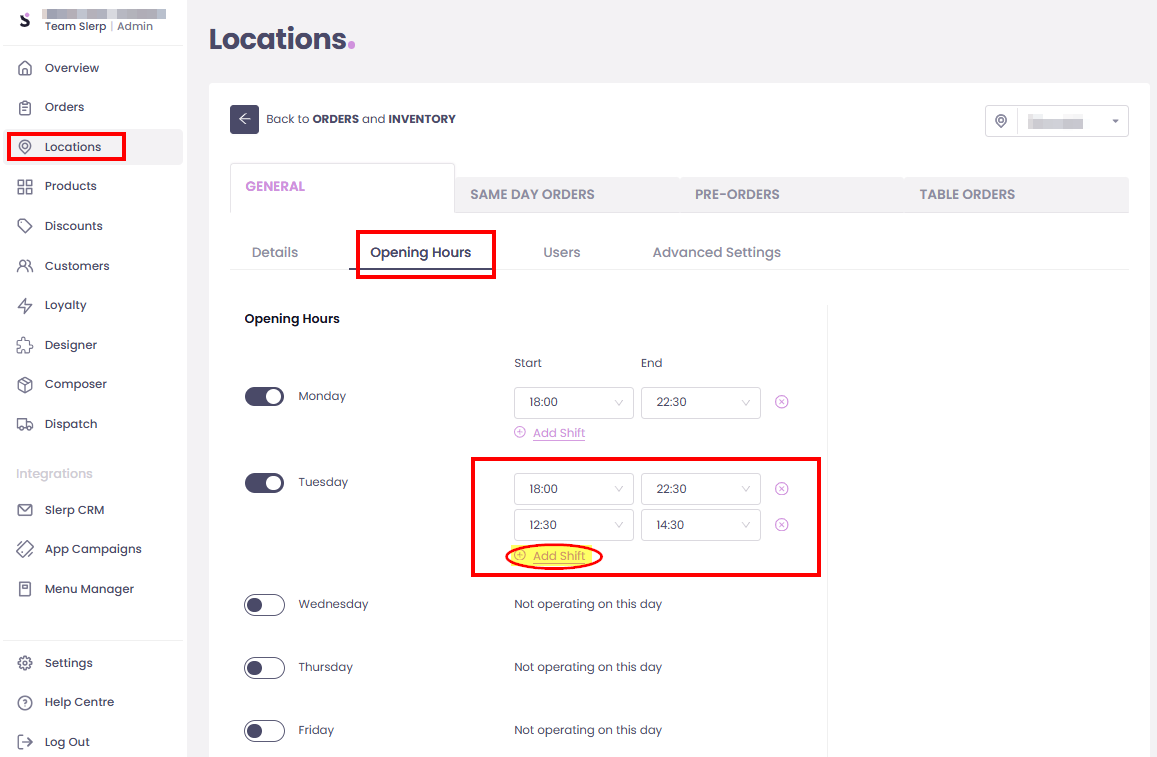
The system will then automatically:
- Open the store for the first shift
- Close it during the break
- Reopen for the second shift
- Close again at the end of the day
Manually Opening and Closing a Store (Controls Dashboard)
Even with auto opening/closing and split shifts, you may sometimes need to manually close or open your store — for example, if:
- You sell out early
- There’s a staff shortage
- You have an unexpected issue (equipment failure, power cut, etc.)
How to manually close (or open) a store?
Login as admin to Controls → Locations → Select the location you want to manage → Settings → Store Details (Open/Closed toggle).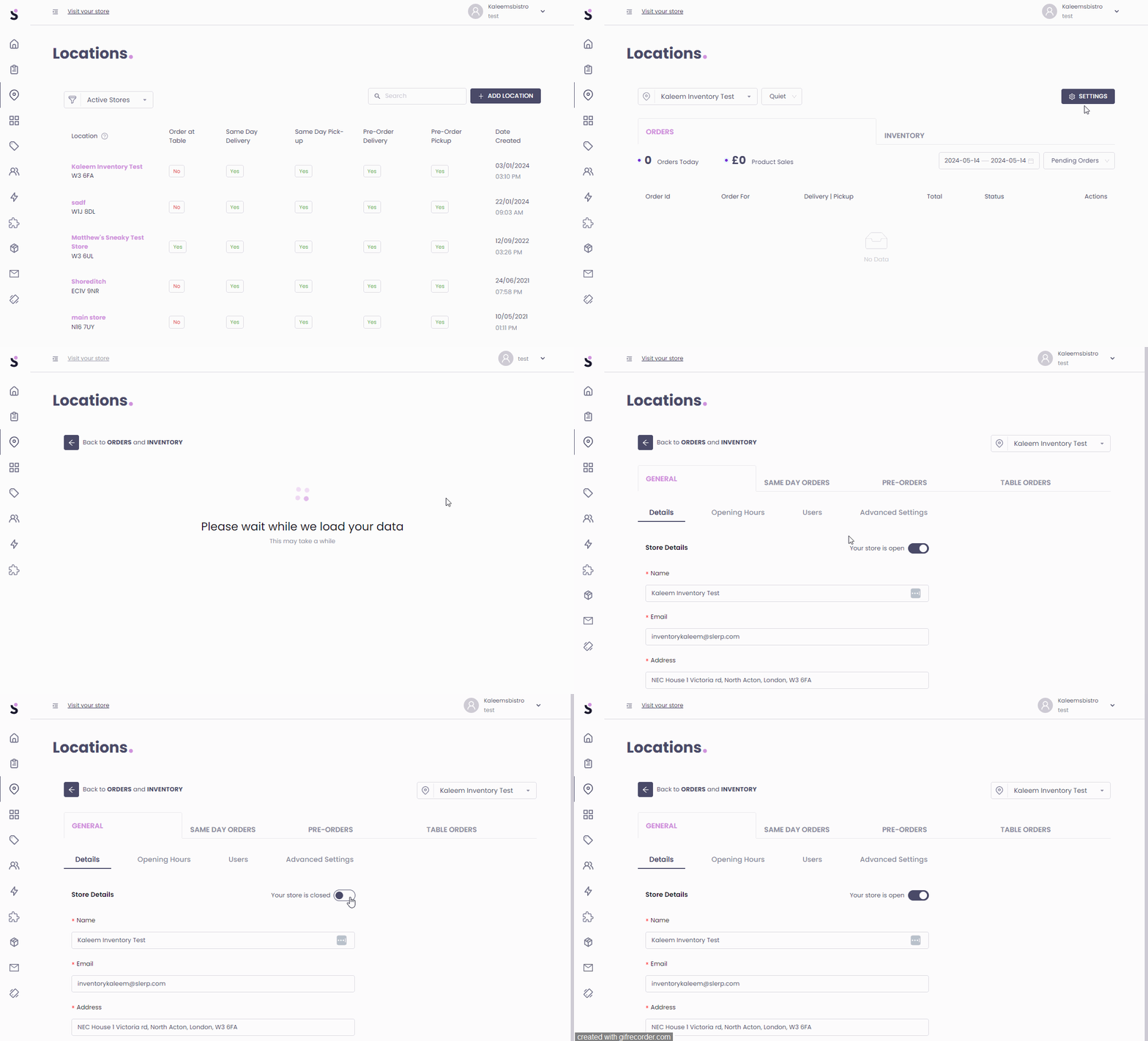
Manual changes will override your schedule while the status is set to Closed. When you reopen, auto opening/closing and split shifts will continue as configured.
By combining auto open/close, split shifts, and manual controls in Slerp Controls, you can run your online operation in a way that matches how your kitchen and front-of-house really work, while keeping the customer experience clear and consistent.