
Pre-order display on the Slerp app helps you manage inventory more effectively. By seeing future orders in advance, you can optimise stock levels, reduce the risk of stockouts or overstocking, and improve your day-to-day operations.
How to enable the Pre-order display on my Slerp App?
-
Tap Account or the menu icon (☰).
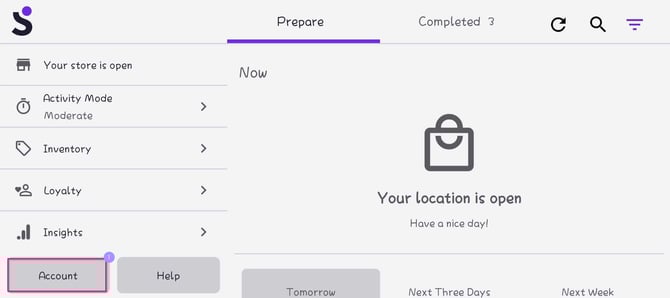
- Settings.
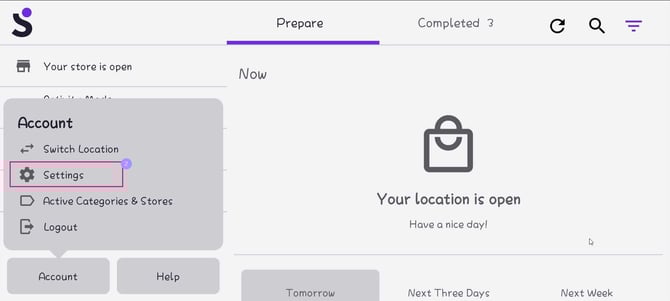
- App Settings.
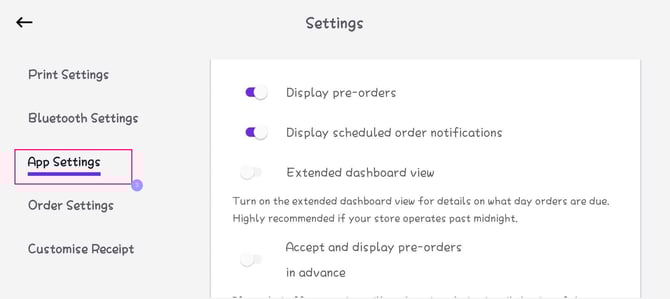
- Toggle Display pre-orders then Save.
Pre-order settings behaviour
Display pre-orders = ON ✳️
- Pre-orders are visible on the dashboard.
- You can see accepted pre-orders up to one week in advance.
- You will also see pre-orders for today when they are due to be fulfilled.
Accept and display pre-orders in advance = ON ✳️
- Accepted pre-orders appear on the dashboard on the day of fulfilment.
- New pre-orders will pop up to be accepted or rejected.
- If Auto-print on acceptance is enabled, the order will print as soon as you accept it.
- Suitable if you want to accept pre-orders as soon as the customer places them.
Display pre-orders = OFF ⛔
- Pre-orders are not shown in the Slerp app.
- Pre-orders due today are hidden.
Accept and display pre-orders in advance = OFF ⛔
- Accepted pre-orders will only appear on the dashboard on the day of fulfilment.
- You must accept or reject pending pre-orders on the dashboard on the day of fulfilment.
- Suitable if you prefer to accept pre-orders in Controls only, or only on the day they are fulfilled.
💡Best practices for pre-orders in the Slerp app
-
Turn Display pre-orders = ON so you can see upcoming orders up to a week in advance and plan inventory accordingly.
-
Use Accept and display pre-orders in advance = ON if you want to accept pre-orders as soon as customers place them and (optionally) auto-print dockets on acceptance.
-
Only set Display pre-orders = OFF if you deliberately do not want the team to see any advance on the app (including today’s).
-
Use Accept and display pre-orders in advance = OFF if you prefer to review and accept pre-orders in Controls or only on the day of fulfilment.
-
Review your pre-order settings regularly to ensure they still match how your store operates (e.g. high pre-order volume, production planning, or last-minute fulfilment).