
Store and office users can be granted access to the Slerp application and Controls dashboard by admin users considering different user role requirements. These access levels are named admin, location, and manager users.
There are 3 different users types:
- Admin
- Location (Store)
- Manager
These roles help you keep your team’s access secure and aligned with their day-to-day tasks.
Admin
What is an Admin User?
An Admin user has full access to the Controls dashboard. They can manage all locations, settings, products, and configuration across your Slerp account.
- You can have multiple Admin users if needed.
- Each Admin must have a unique email address, which is used as their username.
- If you have multiple locations, Admins can see and switch between all locations (for example, on the tablet, by tapping “switch location”).
Location (Store)
What is a Location (Store) User?
A Location (or Store) user has access limited to one specific location. This is ideal for staff who only need to manage a single store’s day-to-day operations.
A Location user can typically:
- Open/Close their store.
- Toggle products on/off in the live inventory and mark items out of stock.
- Adjust opening times and preparation times for their assigned location.
They cannot access global Controls features for other locations or higher-level configuration.
Manager
What is a Manager User?
A Manager user sits between Admin and Location users. They can access multiple locations, manage orders, and amend location-level settings for those locations, but they do not have full Admin permissions.
A Manager user can:
- View and manage orders across the locations they are assigned to.
- Adjust location settings for those specific sites.
A Manager user cannot access the full Controls feature set such as:
- Creating or managing products.
- Using Designer.
- Managing Loyalty.
- Generating full Reports.
- Other global configuration options.
How to add a new user?
Log in as Admin to Controls → Settings → Users
You may also access this Quick Link ⚡Users
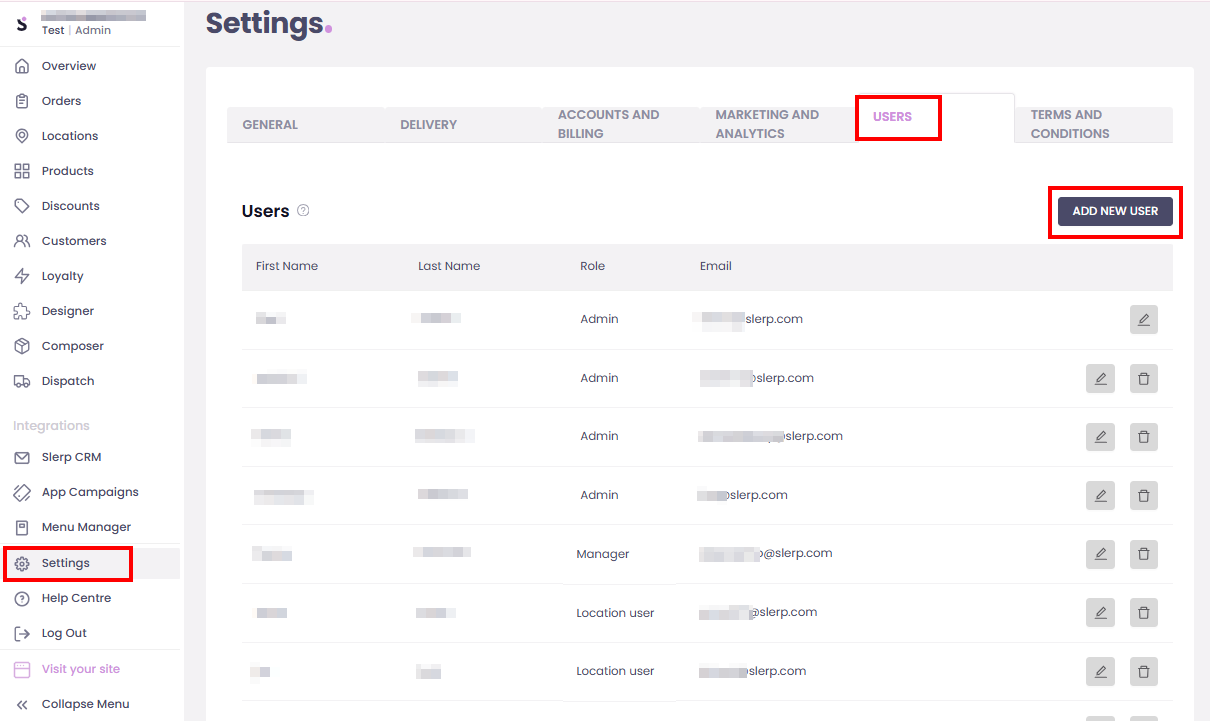
Fill in the required details.
Under User Role, you'll have the option to choose which type of User it will be.
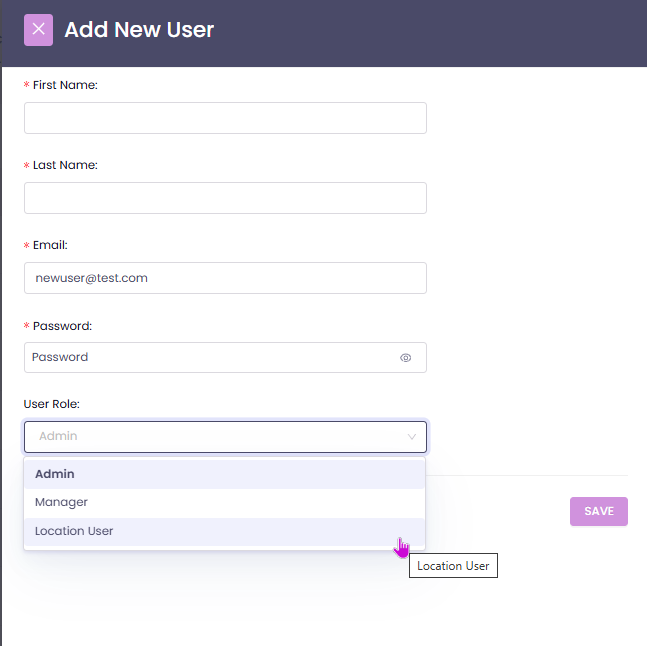
Click Save.
By setting the appropriate role for each team member, you can keep your Slerp account secure while ensuring everyone has the access they need to do their job effectively.