
Who is this for?
This workflow is ideal if you:
- Provide corporate catering or regular B2B orders.
- Have clients who need to pay on invoice instead of by card.
- Want those clients to:
- Place their own orders via your Slerp powered online store or app, and
- Be invoiced later based on agreed payment terms (e.g. 14 or 30 days).
Typical scenarios:
- Corporates with a monthly budget (e.g. “£5k per month, payable in 30 days”).
- Clients who do not have a company card or whose card limits are too low for frequent/large orders.
- Regular office catering where the client prefers consolidated invoicing.
How it works (at a glance)
- You create a 100% basket discount in Controls and give the code to your chosen clients.
- The client orders via your online store or app, applies the code, and pays £0 at checkout.
- You import the order into Composer.
- Composer uses the original ordering platform pricing (ignoring the discount) to:
- Generate an invoice for the full value; and
- Email it directly to your client and your accounts team.
You still benefit from Slerp’s ordering, production, and logistics tools, while your finance team manages credit terms and payment collection.
Step 1 – Create a 100% basket discount in Controls
1.1 Go to Discounts
- Log in to your Controls dashboard.
- Click on the Discounts tab in the left-hand menu.
- Click + ADD DISCOUNT in the top-left corner.

- Creating and Managing Discount Codes – for a general overview of discount options and behaviour.
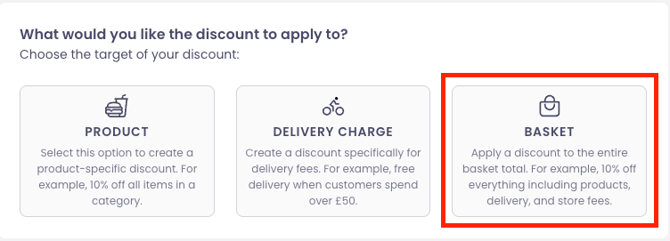
1.2 Select the discount type
On the discount type screen:
- Select BASKET.
This allows you to apply a 100% discount to the entire basket value, including:
- Products
- Delivery charge
- Additional/store fees (where applicable)
1.3 Configure discount details
Complete the fields as follows:
Method
- MANUAL (recommended)
- Customers must enter the code at checkout.
- Best for specific corporate accounts so only those customers can use the code.
- AUTOMATIC
- Code is applied automatically when conditions are met.
- Use only if you intentionally want all qualifying orders in scope.
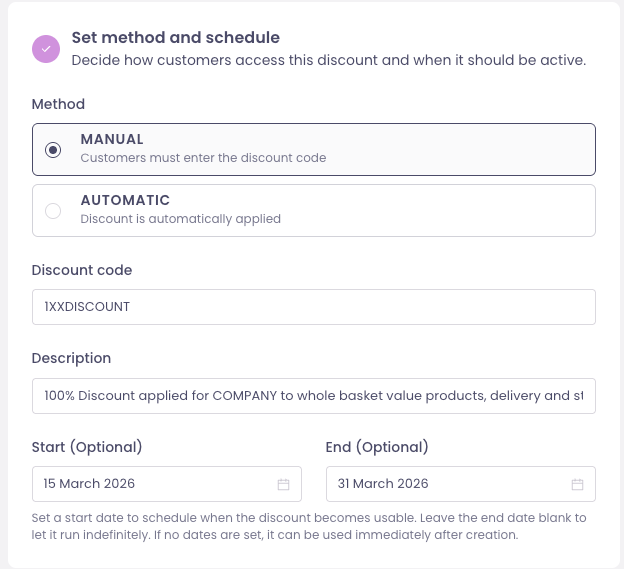
Discount code
- Must be at least 4 alphanumeric characters.
- Example:
SLERPLTD100,COMPANY2026,CLIENTXFREE.
Description
- This text is visible at checkout.
- Example:
“100% Discount applied for COMPANY – basket value, delivery and store fees.”
Start / End dates (optional)
- Start Date – when the discount becomes active.
- End Date – when it automatically deactivates.
- To run indefinitely, leave the End Date blank.
- If no dates are set, the code is usable immediately after creation.
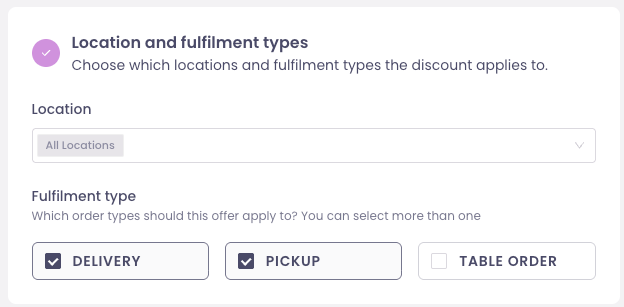
1.4 Choose locations and fulfilment types
If you have more than one location:
- Choose which Locations the discount applies to.
- Under Fulfilment Type, select the order types the code should apply to, for example:
- DELIVERY
- PICKUP
You can limit the discount to specific stores or use it across multiple locations.
1.5 Set discount amount and basket components
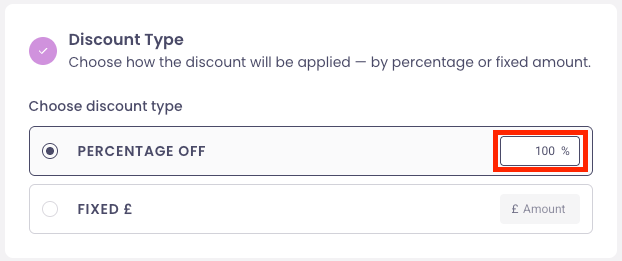
Discount Type
- Set to PERCENTAGE OFF.
- Set Percentage to 100%.
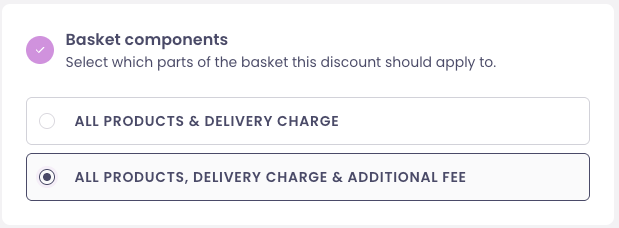
Basket Components
For this workflow, select:
- ALL PRODUCTS
- DELIVERY CHARGE
- ADDITIONAL FEE
This ensures the entire basket is discounted to £0 at checkout.
1.6 Optional restrictions
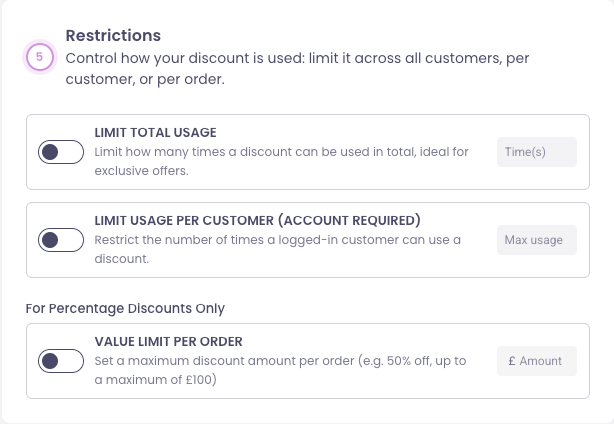
You can control how and how often the discount can be used:
- LIMIT TOTAL USAGE
- Cap the total number of uses across all customers.
- LIMIT USAGE PER CUSTOMER
- Restrict how many times each customer can use the code.
- VALUE LIMIT PER ORDER
- Cap the maximum value that can be discounted per order.
These options are useful if you’re extending credit only within certain commercial limits.
1.7 Discount calculation rules
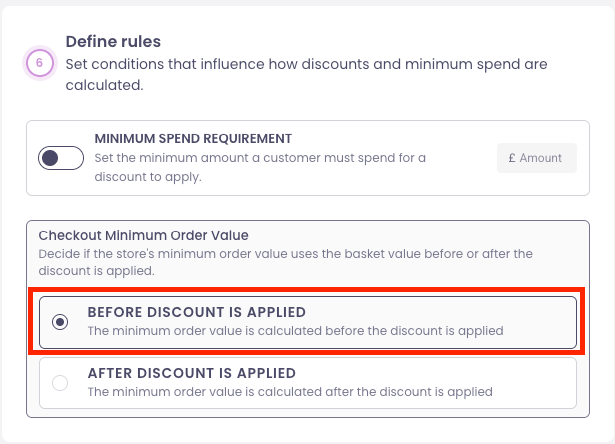
You can define how discounts and minimum spend are calculated.
- For this invoice-based workflow, always select:
“BEFORE DISCOUNT IS APPLIED”
This ensures any minimum spend logic is based on the full basket value before the discount.
1.8 Create and manage your discount
- Click CREATE DISCOUNT at the bottom to activate the code.
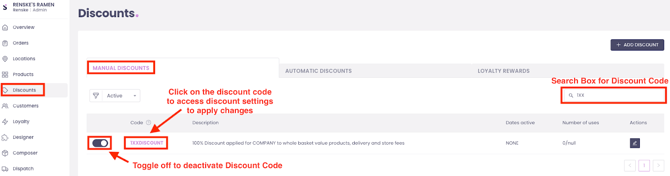
To update or deactivate later:
- Go back to Discounts in Controls.
- Use the search bar to find your discount code.
- If you created a Manual discount, check under the Manual Discounts section.
- Edit or deactivate the discount as needed.
You can also:
- Create different codes per company or event for tracking and reporting.
- Use Controls reporting to see usage by discount code.
Step 2 – Configure Composer for invoicing (one-time setup)
Before importing and invoicing orders, configure your default invoice settings in Composer.
- What is Composer? – overview of what Composer does and how it fits into your workflow.
2.1 Set your business details and invoice numbering
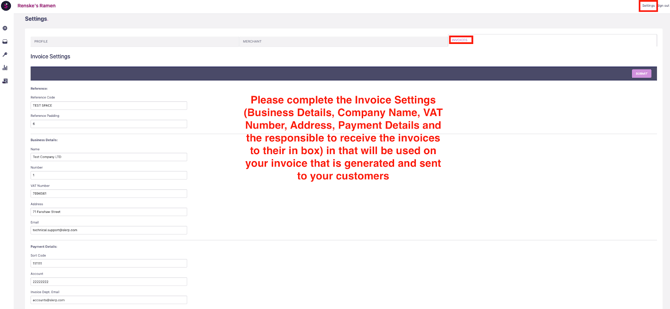
- Log in to Composer from Controls (via the Composer icon).
- Click Settings (top-right).
- Go to the Invoice tab.
Complete your Business Details, including:
- Business name
- Address
- Contact details
- Any other required information that should appear on invoices.
Configure invoice numbering:
- Reference Code – prefix used for all invoice numbers (e.g.
SLERP,INV, or your own code). - Reference Padding – number of digits after the prefix (e.g.
6forINV000001).
Example:
- Reference Code:
vdvdvd - Reference Padding:
6 - First invoice code:
vdvdvd000001
Click Submit to save.
2.2 Set default payment terms
Payment terms should match the agreements you have with your clients (e.g. 14 days, 30 days, 2 weeks, 1 month).
To set global default terms:
- In Composer, go to Accounts → Customers.
- Select Default Customer.
- Click into the Default Account.
- Under Actions, choose Edit.
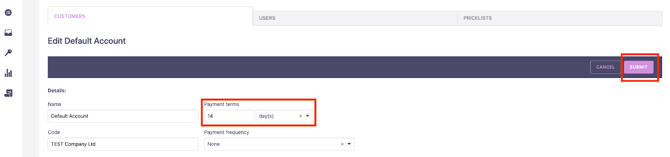
- Set the Payment Terms (e.g. “14 days”, “30 days”).
- Click Submit to save.
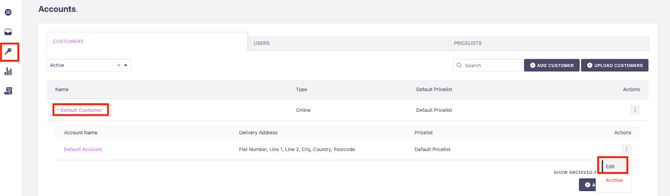
These default terms will be used when generating automatic invoices. You can override them per customer/account if needed.
📝 Note: Slerp does not enforce credit limits or block orders based on outstanding invoices. Your finance team manages credit risk, payment collection, and any restrictions you choose to apply offline.
Step 3 – Import £0 orders into Composer
Once a client has placed an order using the 100% discount:
- The order appears in Controls as normal, with an order total of £0.
- You then import that order into Composer.
Example:
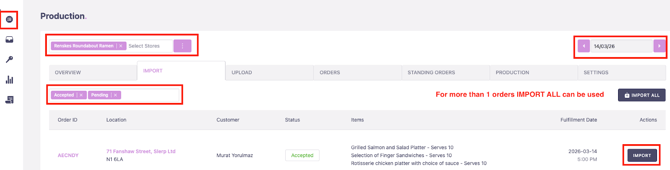
Customer Slerp Ltd places order AECNDY for fulfilment on 14 March 2026, delivery window 17:00–18:00.
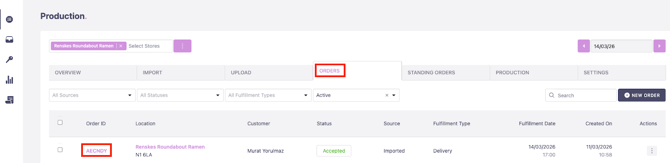
3.1 Import from the Production tab
In Composer:
- Go to the Production tab.
- Select Stores:
- Ensure the correct store(s) are selected.
- If a store was removed previously, re-add it before continuing.
- Select the date interval:
- Choose the specific date or date range for orders (e.g. 14 March 2026).
- Click the Import tab.
- Check your Order Status filters:
- Ensure the statuses you want to import are selected, for example:
- Accepted
- Pending
- Ensure the statuses you want to import are selected, for example:
- Find the relevant order(s):
- Locate order AECNDY (or use search if available).
- Click Import on that single order, or Import All to import all listed orders.
Once imported, the order is available in Composer under Orders.
Step 4 – Review orders and generate invoices in Composer
4.1 Review and edit the order (optional)
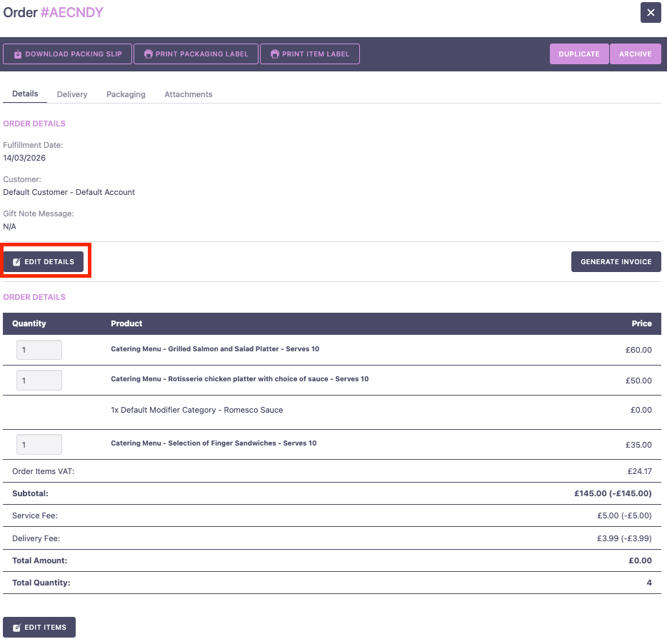
- Go to the Orders tab in Composer.
- Search for and select the relevant order (e.g. AECNDY).
- Click on the order number to open it.
From this screen you can:
- Edit the order:
- Click Edit Details to:
- Add or remove products.
- Adjust quantities (if allowed by your process).
- Update the invoice details such as billing contact or company name.
- Click Submit to save your changes.
- Click Edit Details to:
⚠️ Important:
- Composer uses pricing from the Ordering Platform to generate invoices and disregards the 100% discount applied at checkout.
- This means the invoice reflects the full value of what was ordered, not £0.
4.2 Generate and send the invoice
When you’re ready to invoice:
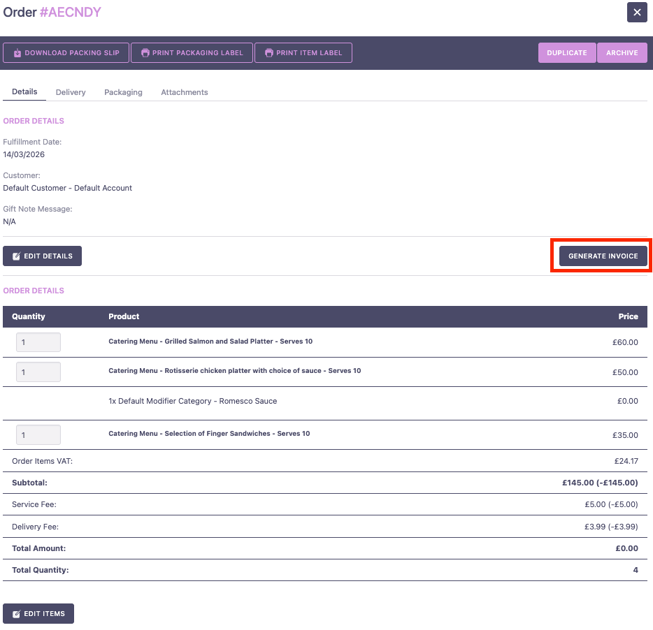
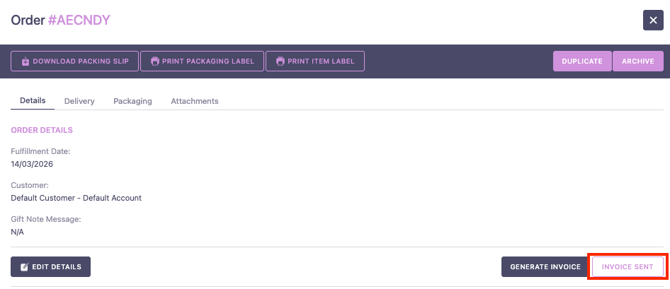
- From the order view, click GENERATE INVOICE.
- Composer will:
- Create the invoice using your default invoice settings and payment terms.
- Download a copy of the invoice to your computer.
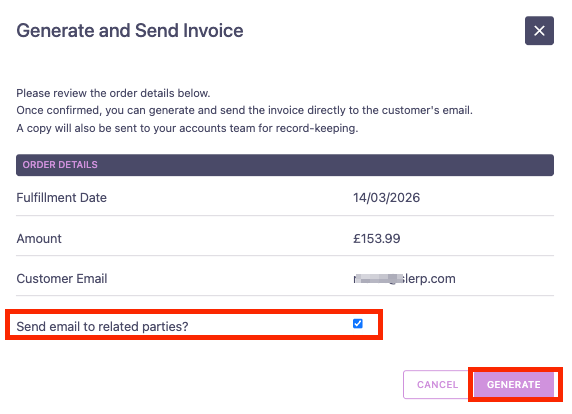
- Prompt you to send the invoice to your customer by email.
Additionally:
- A copy can be emailed to your accounts team for internal records (where configured).
- You can choose to:
- Send the email now, or
- Send later from the Invoices section.
After generating the invoice, an INVOICE SENT marker/tab is automatically associated with the order, allowing you to see that an invoice has been created.
Step 5 – Manage invoices in Composer
To manage existing invoices:
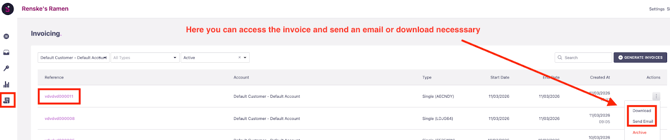
- Go to the Invoices section in Composer.
- From here you can:
- Send invoices that were created but not yet emailed.
- Re-send invoices to clients.
- Download invoices for your records or to share internally.
- How to Generate an Invoice Report – for exporting invoice data, tracking totals and VAT, and reconciling accounts.
💡 Best practices and notes
-
Separate codes per customer
- Create unique 100% discount codes for each key corporate account or event.
- This makes it easier to report and reconcile usage per client.
-
Align payment terms
- Ensure your Composer payment terms match your commercial agreements.
- Communicate acceptance of those terms clearly to your clients.
-
Internal credit control
- Use Composer invoices and invoice reports to support your finance processes.
- Credit limits, chasing overdue payments, and decisions to suspend ordering are managed by your team, not enforced by Slerp.
-
Operational consistency
- Train your accounts and operations teams on:
- Which client use the 100% code.
- How and when to import and invoice.
- What to do if a client forgets to use the code (e.g. manual adjustments, internal policy).
- Train your accounts and operations teams on:
FAQs
Q: Will Slerp automatically track and enforce credit limits?
A: No. This workflow lets you invoice after the order is placed, but credit control remains with your finance team. Slerp does not block orders based on outstanding invoices or credit balances.
Q: Does the invoice show the 100% discount?
A: No. Composer uses the original order pricing from the Ordering Platform and ignores the checkout discount. The invoice shows the full amount the customer should pay.
Q: Can I use this for regular consumers as well?
A: This workflow is designed for known corporate or account customers with agreed credit terms. Using it widely for one-off consumers is not recommended, as payment collection and credit risk are entirely managed by you.
Q: Can I create multiple 100% codes for different customers or events?
A: Yes. You can create separate codes per company or event and manage them under Discounts in Controls. This is useful for tracking and reporting.