
You can reduce stress and protect your customer experience by adjusting:
- Your preparation time using Activity Mode, and
- Your delivery area using Busy Driving Zone.
Step 1 – Understand peak‑hour behaviour with Slerp courier partners
During peak times:
- Couriers may take longer to accept jobs.
- Drivers might be further away when assigned.
- Traffic or weather can affect arrival times.
Slerp books couriers based on your prep time and the customer’s chosen slot.
For details on how bookings work for ASAP, scheduled, and pre‑orders, see:
🚘 Delivery with Slerp Courier PartnersStep 2 – Increase preparation time when you’re busy
If your kitchen is busy but your prep time is still set low, drivers may arrive before orders are ready, or customers may see unrealistic ETAs.
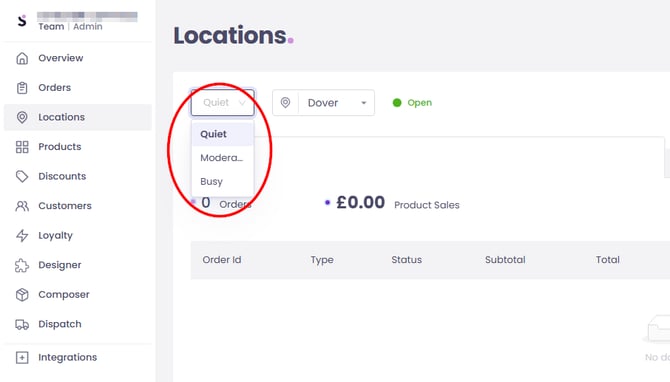
Use Activity Mode to change your prep time based on how busy you are:
- Log in to Controls Dashboard with your admin account.
- Go to Locations and select the right location.
- Go to Settings > Same Day Orders > Preparation Time.
- Set prep times for each mode: Quiet, Moderate, and Busy.
- Your store team can then switch modes in the Slerp app as the day gets busier.
For full guide, see:
What this does for you:
- When set to Busy, customers cannot place orders for very near‑term fulfilment (e.g. within 30 minutes, depending on your settings).
- This gives your kitchen and drivers more realistic time to complete orders.
- It helps reduce complaints about late orders during peak hours.
Step 3 – Shrink your delivery area when fleets are stretched
When fleets are under pressure, long‑distance deliveries are the riskiest for delays. You can protect your experience by turning on a Busy Driving Zone.
- Log in to Controls Dashboard.
- Go to Locations > [your location] > Settings.
- Go to Same‑day orders > Delivery.
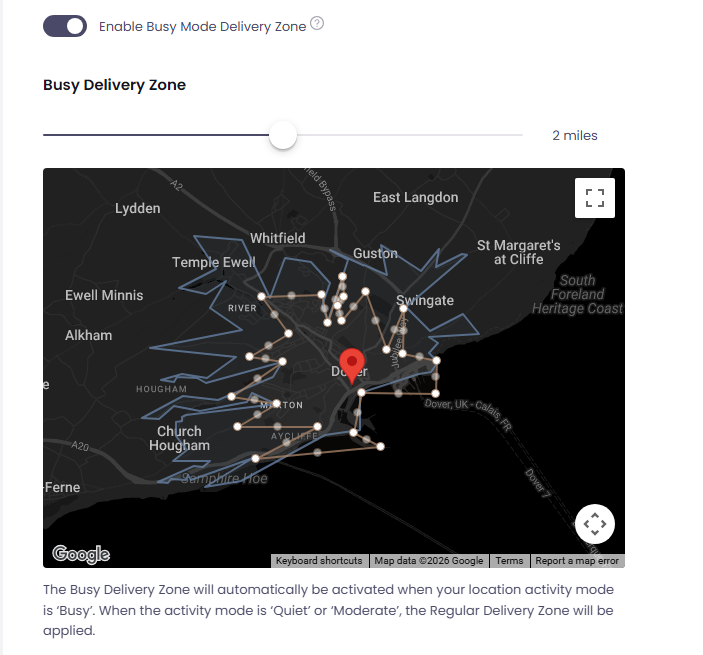
- Configure a Busy delivery zone – a smaller area closer to your store.
- Save your changes.
When your Activity Mode is set to Busy, Slerp will automatically use this Busy delivery zone instead of your regular one.
For full guide, see:
🗺️ Setting your Busy Driving ZoneWhat this does for you:
- Reduces long‑distance deliveries when couriers and kitchens are stretched.
- Keeps ETAs more realistic and protects your reviews.
- Lets you still take orders from nearby customers even when you’re very busy.
Step 4 – Operational tips during peak hours
- Monitor orders and driver status
- Use the Orders tab in Controls and the Track courier feature in the app to spot potential delays early.
- Proactively communicate with customers
- If you see delays, contact the customer directly to explain and adjust expectations.
- Adjust settings ahead of peak
- Set Busy prep times and Busy Driving Zone before your known peak times (e.g. 6–9pm Fridays).
- Review after peak periods
- Check how your delivery times and complaints looked, then adjust zones and prep times if needed.