
Setting up and managing pre-order deadlines (Category Cut-Off Rules)
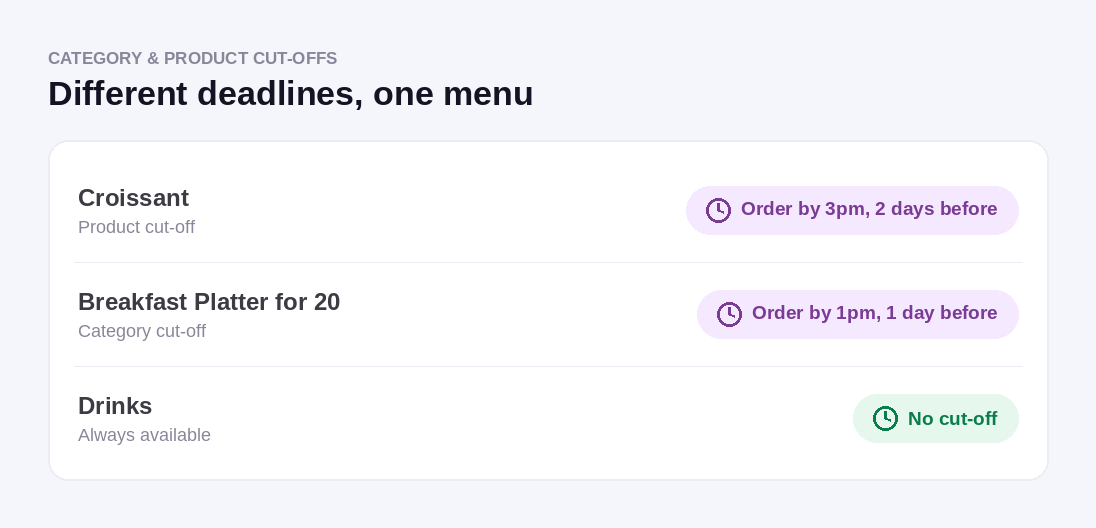
The Category Cut-Off Rule feature lets you set specific pre-order deadlines for individual categories. This helps you protect production timelines while keeping the ordering experience simple for customers.
Example:
-
General pre-order cut-off: 1 day before at 11:59pm
-
Platters category cut-off: 3 days before at 5:00pm
Setup: Create a category cut-off rule for Platters with a 3-day cut-off at 5:00pm. Outcome: For a fulfilment date of 10 January, Platters will no longer appear at checkout after 7 January at 5:00pm, while other categories using the general cut-off remain available.
Benefits of Category Cut-Off Rules
- Streamlined Operations: Use different cut-offs per category without creating extra locations.
- Improved customer experience: Customers order from a single location, with consistent, predictable availability.
- Flexibility and control: Adjust cut-offs for seasonal peaks or promotions without changing your core schedule.
- Better order management: Ensure production deadlines are met by enforcing realistic lead times per category.
Schedule Types
You can configure two schedule types for category cut-off times:
OngoingUse this for rules that apply indefinitely.
-
- Example: Platters always require a cut-off of 3 days before at 5:00pm.
Specific Dates
Use this for fixed date ranges, such as festive periods or one-off promotions.
-
- A Specific Dates schedule overrides an Ongoing schedule when fulfilment dates overlap.
- Example: For 24–26 December, set a 5-day cut-off before 5:00pm. This rule applies only during those dates; after 26 December, the standard 3-day Ongoing rule resumes automatically.
How to Set Up a Category Cut-Off Plan
- Log in to your Controls Dashboard.
- Use this Quick Link ⚡ to access -- Locations tab
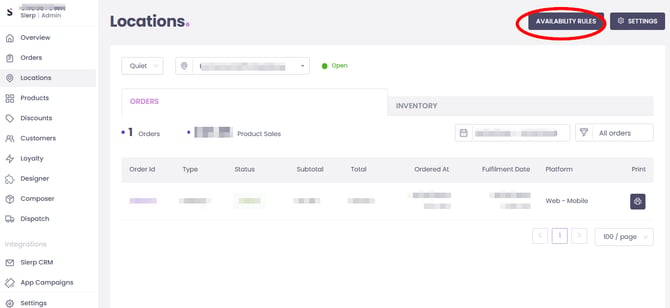
- Click on the ‘Availability Rules’ button.
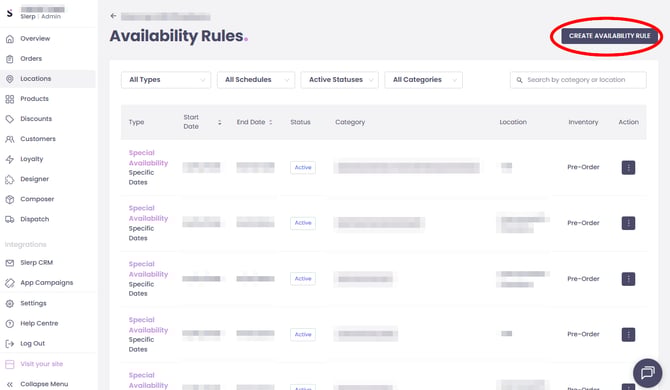
- On the ‘Availability Rules’ page, click ‘CREATE AVAILABILITY RULE’ then ‘CATEGORY CUT-OFF’
- Define Categories and Locations: Choose the categories and locations your rule will apply to.
- Select Schedule Type: Choose either Ongoing or Specific Dates schedule.
- Configure Cut-Off Times:
- Set the start and end (not required for an Ongoing schedule) dates for the rule.
- Define the cut-off time for each day of the week
- Click ‘Save’ to activate the category cut-off plan. The rule will begin on the specified start date.
Integration with Special Availability
This feature works seamlessly with Special Availability. A category with both cut-off times and special availability will only appear during the defined availability period if it meets the cut-off time.
Example:
- The Platters category is available Monday to Friday from 10:00am to 2:00pm (via Special Availability).
- A cut-off time of 3 days before at 5:00pm is set.
- To order for Wednesday, customers must place their order by Sunday at 5:00pm. The category will appear for fulfillment times between 10:00am and 2:00pm on Wednesday.