
This is a workflow to support invoice-based payment, with credit management handled by your own finance processes. Slerp does not enforce credit limits, chase overdue invoices, or block further orders based on outstanding balances.
Who is this for?
This workflow is designed for partners who:
- Regularly serve corporate or B2B customers (e.g. offices, events, catering clients).
- Need to offer credit terms (e.g. 14 days, 30 days, monthly billing).
- Want those customers to:
- Place their own orders via the online store, but
- Pay later via invoice, not by card at checkout.
Typical use cases:
- Monthly credit agreements such as “£5k per month, payable in 30 days”.
- Corporates who do not have suitable company cards or whose card limits are too low for frequent or large orders.
- Regular catering customers who prefer consolidated invoice-based purchasing.
How the workflow fits together
At a high level:
-
Set up a 100% basket discount in Controls
- This discount brings the entire basket (products + delivery + additional fees) to £0 for customers who have the code.
-
Customer places an order using the code
- They order through your Slerp store as usual.
- At checkout, they enter the 100% code.
- The order total becomes £0 and no payment is taken, but the order still flows through to your Slerp systems.
-
Import the order into Composer
- You import the Slerp order into Composer for production and invoicing.
-
Generate and send an invoice from Composer
- Composer uses the original ordering platform pricing (before discount) to create an invoice for the full amount.
- The invoice is emailed to the customer and can be copied to your accounts team.
- The customer pays offline / manually according to the agreed payment terms.
Credit limits, chasing overdue invoices and deciding whether to stop offering credit to a customer are all managed by your finance team, outside Slerp.
Step 1 – Set up a 100% basket discount (in Controls)
To let selected customers place orders at £0 and pay later by invoice, you need a 100% basket discount.
Conceptually, this discount:
- Applies to the entire basket (products, delivery charge and additional/store fees).
- Is usually configured as a manual code that you share only with the customers you want to give credit terms to.
- Ensures that, when applied at checkout, the order total becomes £0, even though you later invoice for the full value via Composer.
Examples of how you might name such codes:
COMPANY100– for a specific corporate client.OFFICECATERING– for a particular office or internal group.- Event-specific codes if you want to isolate usage per event.
For a full step‑by‑step guide on creating discount code:
🏷️ Creating and Managing Discount Codes → Creating a 100% basket discount
Once you’ve created and activated the 100% basket discount, share the code with your chosen corporate / credit customers and align them on:
- When they should use the code
- Any limits (e.g. value caps, time limits, or usage counts)
Step 2 – Configure Composer for invoicing
Next, configure Composer so that invoices generated from imported Slerp orders carry the correct:
- Business details
- Invoice numbering format
- Payment terms
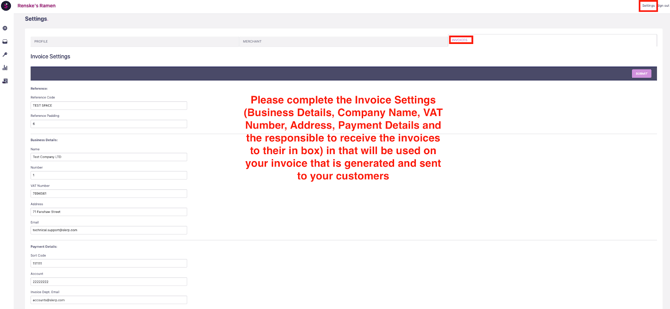
Configure invoice details and numbering
In Composer:
- Open Composer from your Controls dashboard.
- Click Settings (top-right).
- Go to the Invoice tab.
Complete your Business Details:
- Legal business name
- Address
- Contact information (email, phone, website if relevant)
These details appear on every invoice generated via Composer.
Configure your invoice numbering:
- Reference Code – the prefix used for all invoice numbers
- Examples:
INV,SLERP, or a short code such asCATfor catering invoices.
- Examples:
- Reference Padding – the number of digits following the prefix
- Example:
6→INV000001,INV000002, etc.
- Example:
With:
- Reference Code:
INV - Reference Padding:
6
your first invoice will be numbered:
INV000001
Click Submit to save your settings.
What is Composer? – overview of what Composer does and how it fits into your workflow.
Set default payment terms (applies to Slerp orders)
Your payment terms should reflect what you’ve agreed with your credit customers (e.g. 14 days, 30 days, 2 weeks, 1 month).
To set the default terms used when invoicing imported Slerp orders:
- In Composer, go to Accounts → Customers.
- Open the Default Customer.
- Select the Default Account.
- Under Actions, click Edit.
- Set the Payment Terms (e.g. “14 days”, “30 days”).
- Click Submit to save.
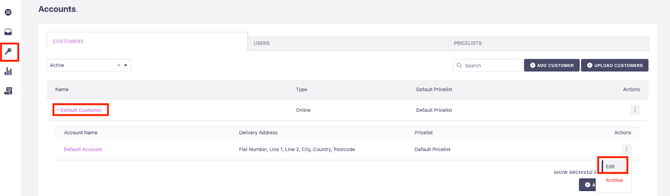
These default terms will be used when generating automatic invoices for Slerp orders.
- You can configure different payment terms on other customer accounts in Composer.
- However, for Slerp orders imported from your online store:
- All invoices follow the payment terms defined on the Default Customer.
- Per-customer overrides in Composer do not change the due date behaviour for Slerp-imported orders at this time.
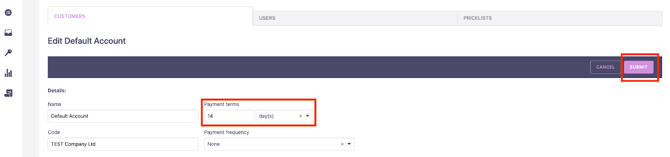
Your finance team should therefore treat the Default Customer payment terms as the standard schedule for all Slerp-originated credit orders and manage any exceptions as part of your own internal processes.
Step 3 – Import Slerp orders into Composer
Once a customer places an order using the 100% basket discount:
- The order appears in Controls as a normal order with an order total of £0.
- You then import that order into Composer so you can use Composer for production planning and invoicing.
Example scenario:
Customer Slerp Ltd places order AECNDY for fulfilment on 14 March 2026, delivery window 17:00–18:00, using their 100% code.
Once imported, the order is available under Orders in Composer.
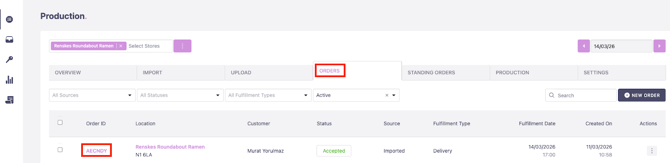
For a full step‑by‑step guide on importing orders in composer:
Step 4 – Generate and send invoices in Composer
After importing, you’ll review the order (within what’s editable for Slerp orders) and then generate an invoice.
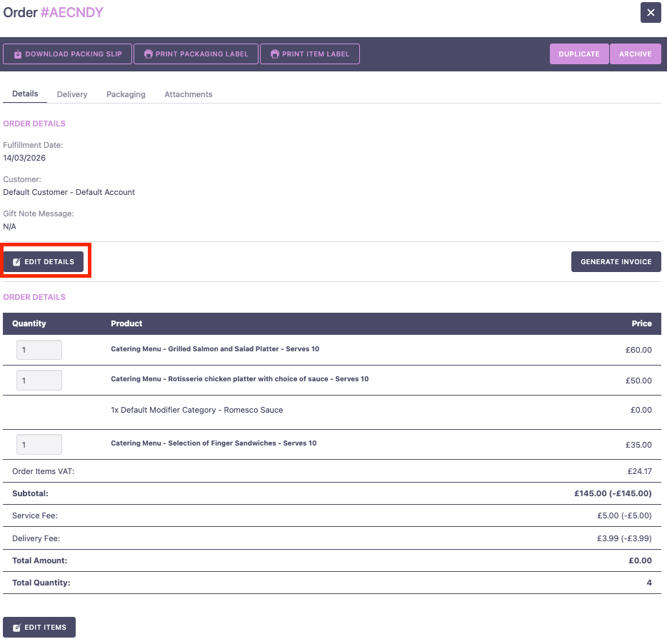
Review and adjust the order (where supported)
- Go to the Orders tab in Composer.
- Search for and open the relevant order (e.g. AECNDY).
- Click the order number to view its details.
From this screen you can:
-
Review:
- Products and quantities
- Pricing
- Customer/order details
-
Make limited edits, where allowed for Slerp-imported orders:
- For example, certain quantity or line changes if your configuration supports it.
Notes:
- Some fields on Slerp-imported orders may be locked and cannot be edited from Composer (for example, certain customer or billing information).
- If something critical cannot be changed here, handle that via your normal finance process rather than trying to overwrite it in Composer.
Click Submit after making any allowed changes so that the invoice reflects the correct information.
⚠️ Important:
Composer uses the original order pricing from the Ordering Platform and ignores any 100% basket discount applied at checkout.
- The invoice will show the full value of what was ordered, not £0.
- This is what allows you to offer £0 checkout while still billing customers the correct amount later.
Generate and Send the Invoice
When you’re ready to invoice:
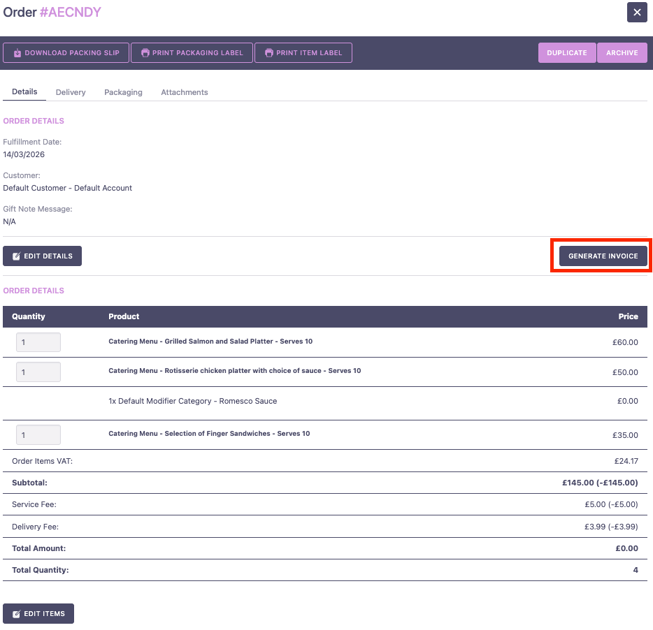
- From the order view, click GENERATE INVOICE.
- Composer will:
- Create the invoice using your business details, invoice numbering, and Default Customer payment terms.
- Download a copy of the invoice to your computer.
- Give you the option to send the invoice to your customer by email.
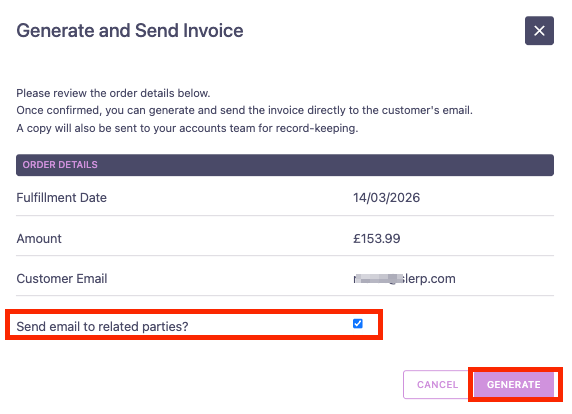
Depending on your settings, Composer can also:
- Email a copy to your accounts team for internal records and reconciliation.
You can choose to:
- Send the invoice email immediately, or
- Send it later from the main Invoices section.
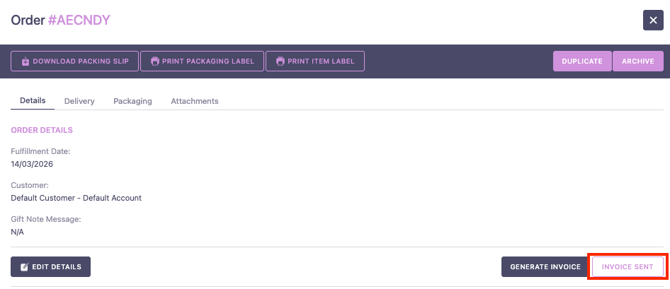
After an invoice is generated, an INVOICE SENT marker/tab is associated with the order so you can instantly see that an invoice exists.
Step 5 – Managing invoices in Composer
To manage generated invoices:
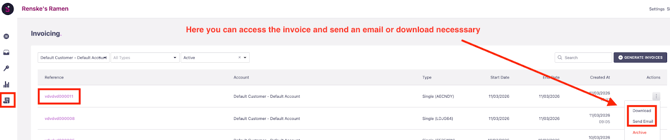
- Go to the Invoices section in Composer.
- From here you can:
- Send invoices that were created but not yet emailed.
- Re-send invoices to customers (for example if they lost the email).
- Download invoices for your records or to share internally.
For reporting and reconciliation:
See How to Generate an Invoice Report for instructions on exporting invoice data (totals, VAT, customer accounts, etc.) from Composer.
Best practices
-
Use unique codes per customer or event
- Create separate 100% basket discount codes for each corporate customer or key account.
- This simplifies tracking usage per client and reconciling against your finance records.
-
Align internal policies with the Default Customer terms
- Treat the Default Customer payment terms in Composer as your standard credit terms for Slerp orders.
- Make sure your sales and finance teams understand that all Slerp-imported invoices will share this schedule.
-
Keep credit control processes in finance
- Slerp and Composer support invoicing, but do not enforce credit limits or block orders.
- Your finance team should monitor who is using the 100% code, track overdue invoices, and decide when to pause or revoke credit.
-
Communicate clearly with customers
- Explain:
- That they must use the provided code at checkout for credit orders.
- Their invoice due dates and payment methods.
- Any limits (e.g. monthly caps, order value limits).
- Explain:
FAQs
Will Slerp automatically track and enforce credit limits?
No. This workflow allows you to invoice after orders are placed, but credit control remains with your finance team. Slerp does not:
- Enforce credit limits
- Block ordering for customers with overdue invoices
- Automatically chase unpaid invoices
Will the invoice show the 100% discount?
No. Composer uses the original order pricing from the Ordering Platform and ignores the 100% basket discount applied at checkout.
- The customer’s online checkout is £0.
- The invoice shows the full amount they owe, based on what they actually ordered.
Can I change payment terms per customer in Composer for Slerp orders?
You can configure different payment terms on individual customer accounts in Composer, but for Slerp-imported orders:
- All invoices use the payment terms set on the Default Customer.
- Per-account overrides do not change the due date applied to Slerp orders at this time.
Can I use this workflow for one-off consumer customers?
Technically, you can share 100% codes more widely, but it is not recommended. This workflow is designed for known corporate or account customers with formal credit agreements.
- For general consumers, standard promotional discounts or loyalty schemes are usually more appropriate.
Can I still edit invoices after they’ve been generated?
- You can re-generate or re-send invoices from Composer within the capabilities of your configuration.
- Some core order details (especially on Slerp-imported orders) may not be editable from Composer; coordinate with your operations/finance process if changes are needed.